Hourcut — Guide
Features & how to use
The PT that nags you so you don't slack between sets
Hourcut is a workout tracker built to cut the dead time. Log a set with one double-tap, let the app time your rest, and get nudged when you drift. Below, each feature is walked through step by step with real screens.
01 Getting started
One workout at a time. Build today's session and start.
Set up a workout
Pick your moves and lay out sets, reps, and weight for today.
How to
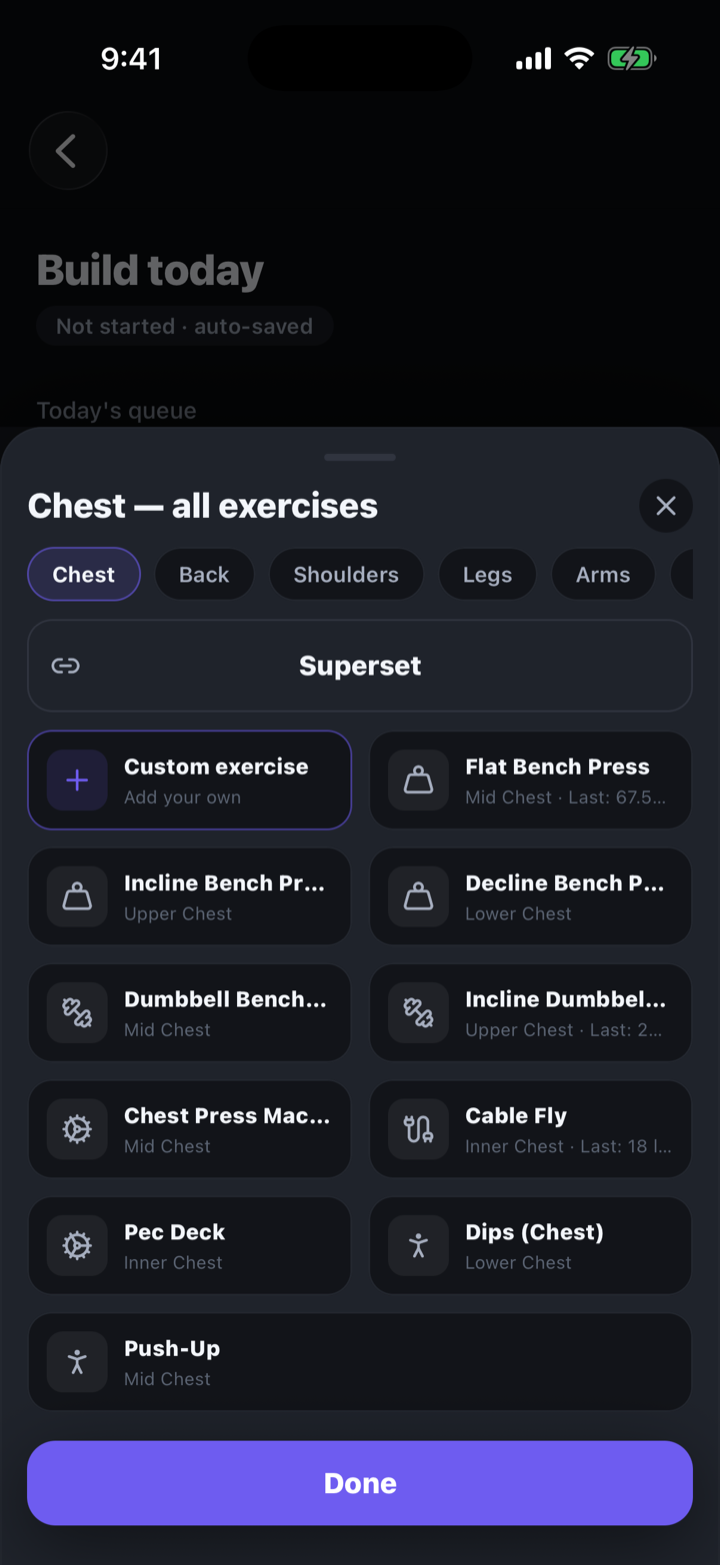
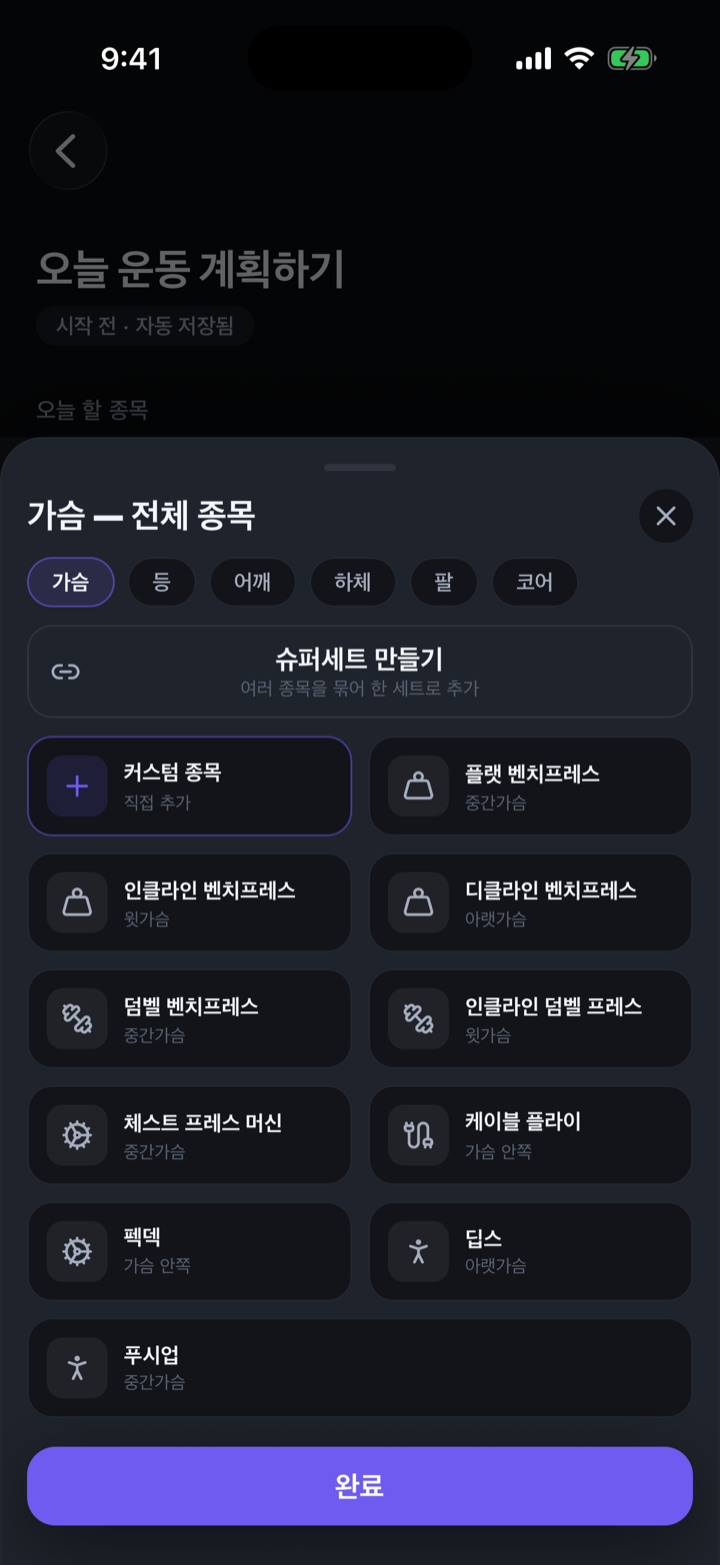
- On the setup screen, open "Add exercise" to bring up the exercise list as a sheet.
- Tap a move to add it to today's workout. Add as many as you like.
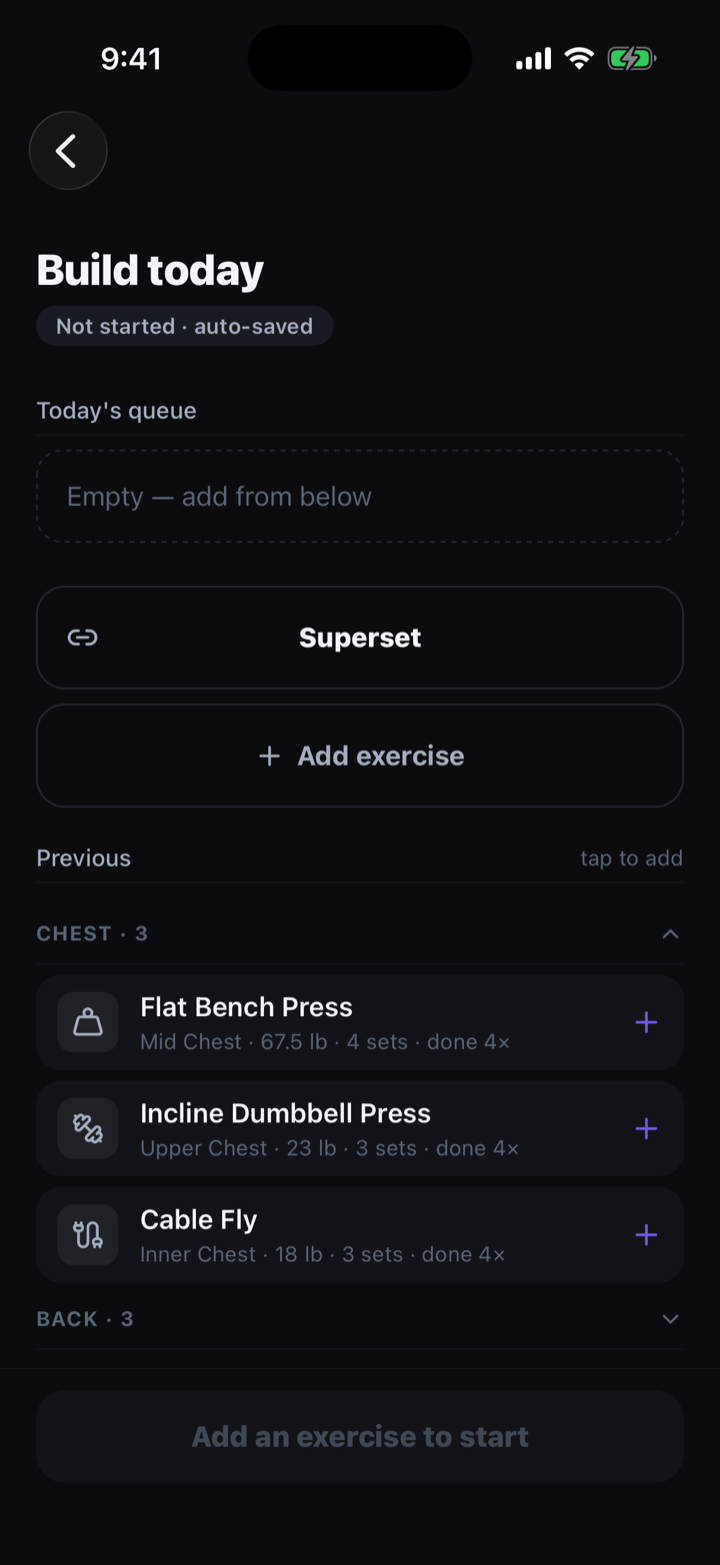
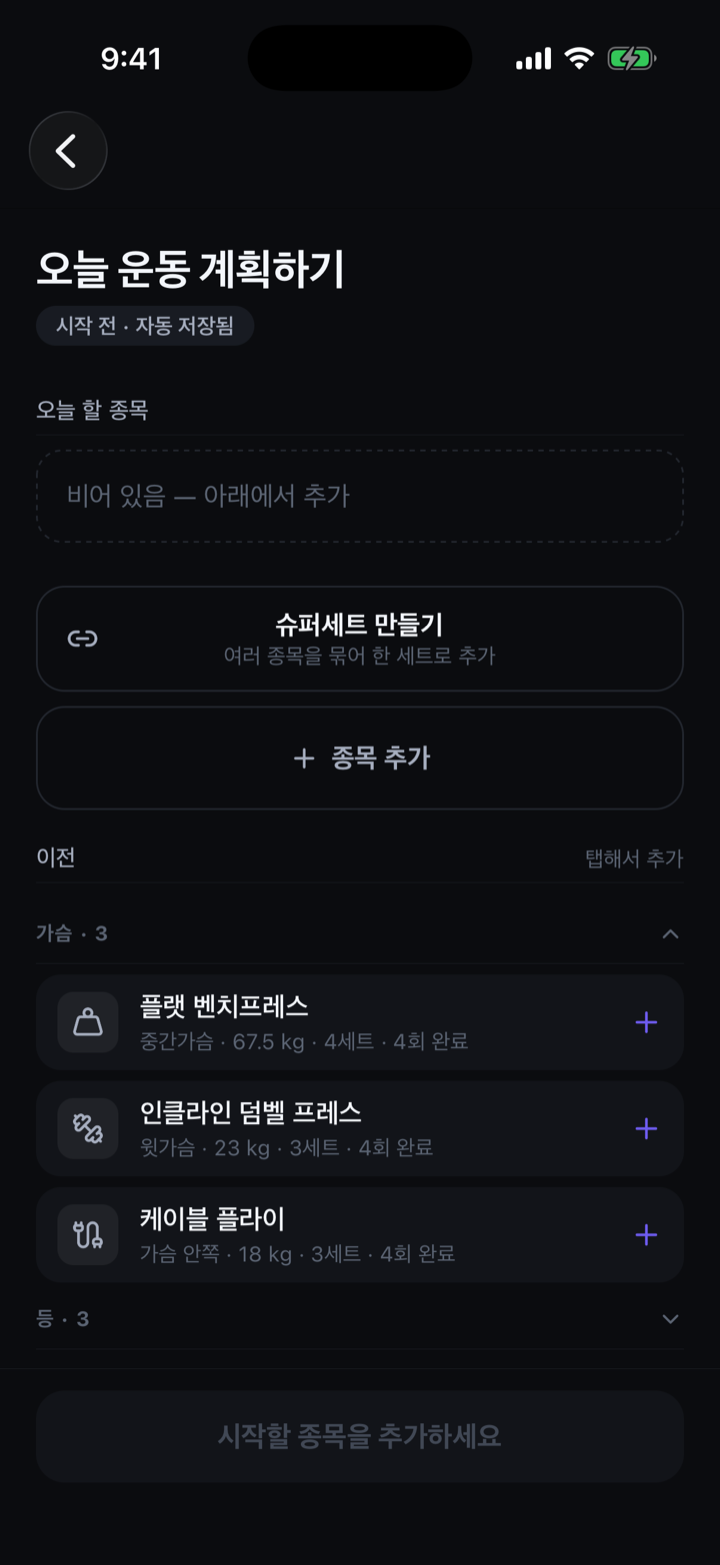
- Fill in sets, reps, and weight for each. Anything you did before is already filled in.
Tip — When history exists, "last time · N reps" shows alongside so you can decide to match or push.
Quick start
For when you just want to lift.
How to
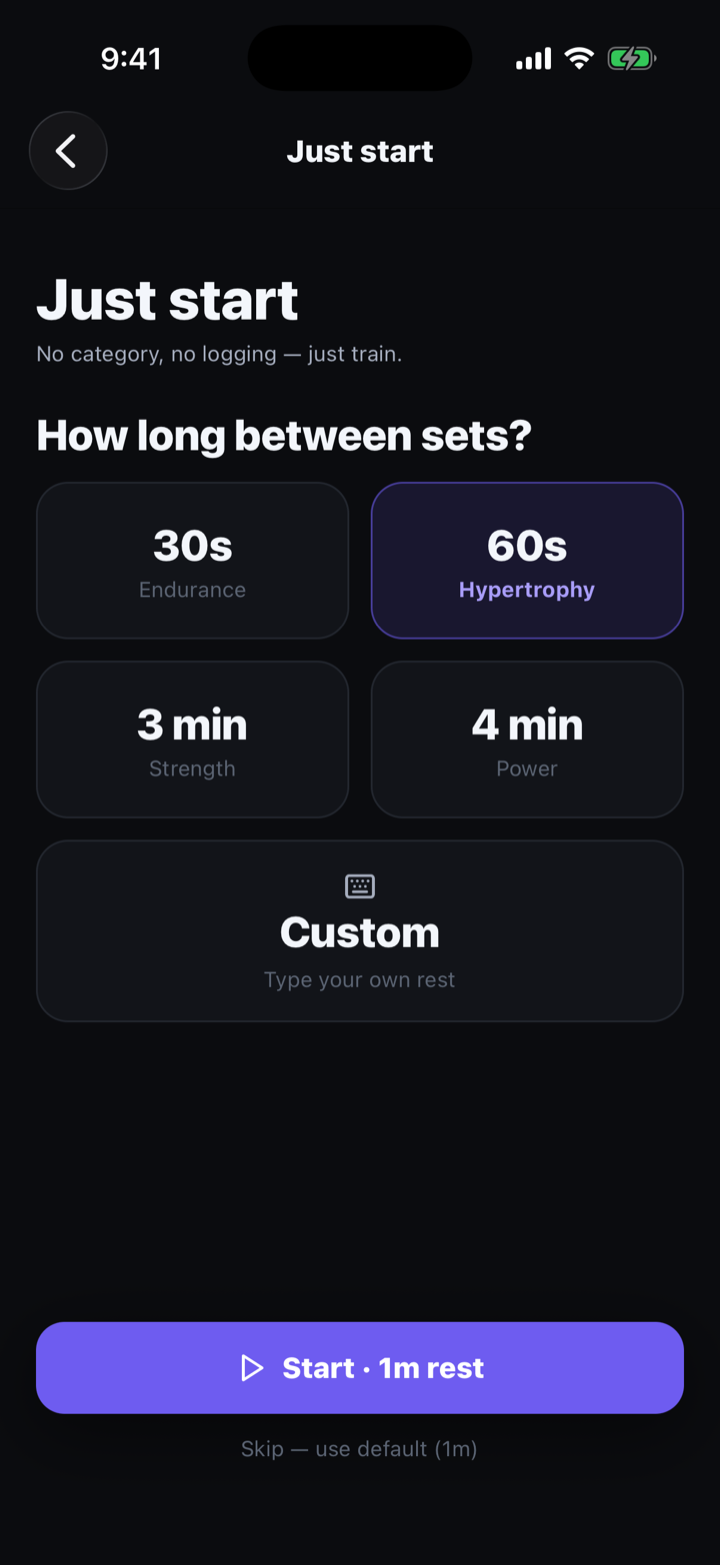
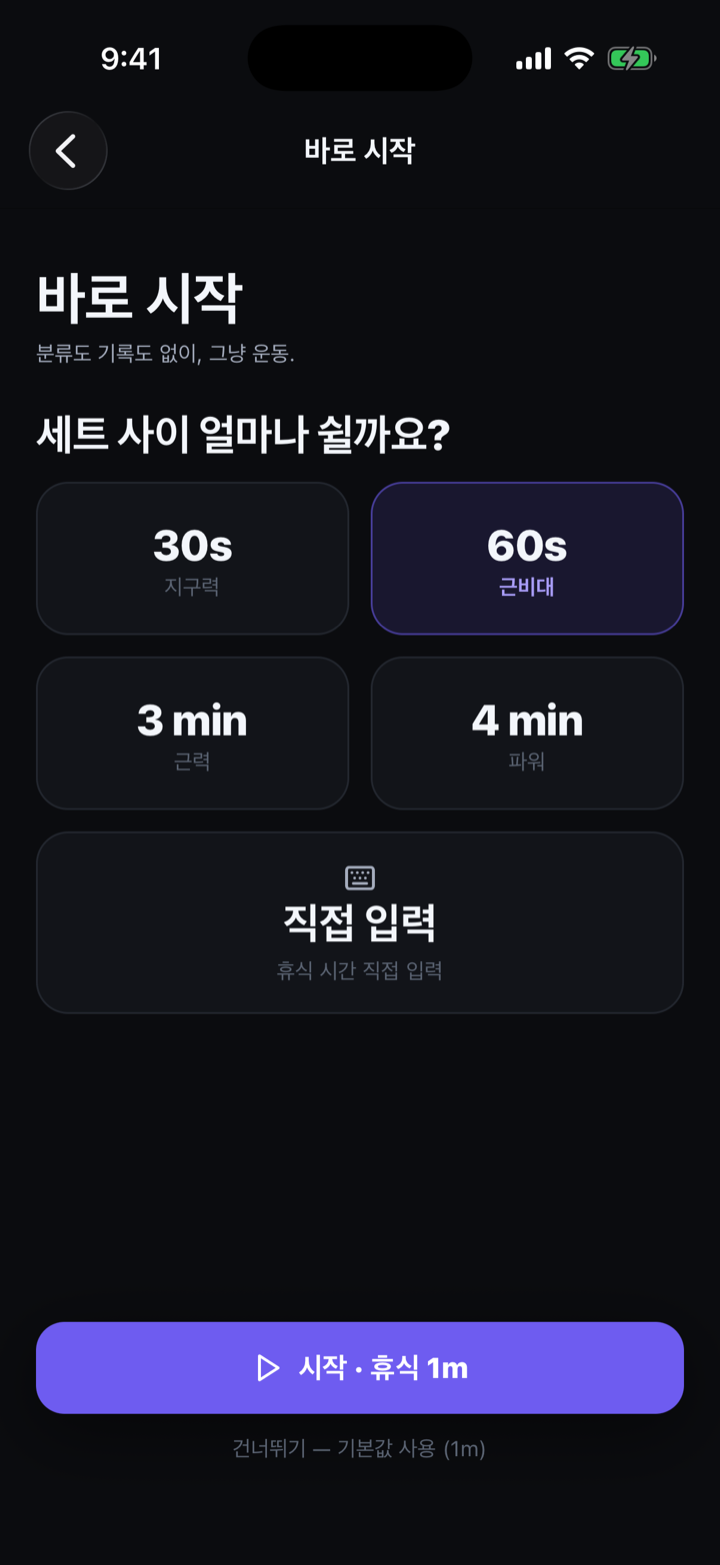
- Grab a single move with Quick start and begin.
- Fill in sets as you go — no plan needed up front.
02 Logging
No need to stare at your phone. Focus on the lift — the app keeps the record.
Last time, pre-filled ★
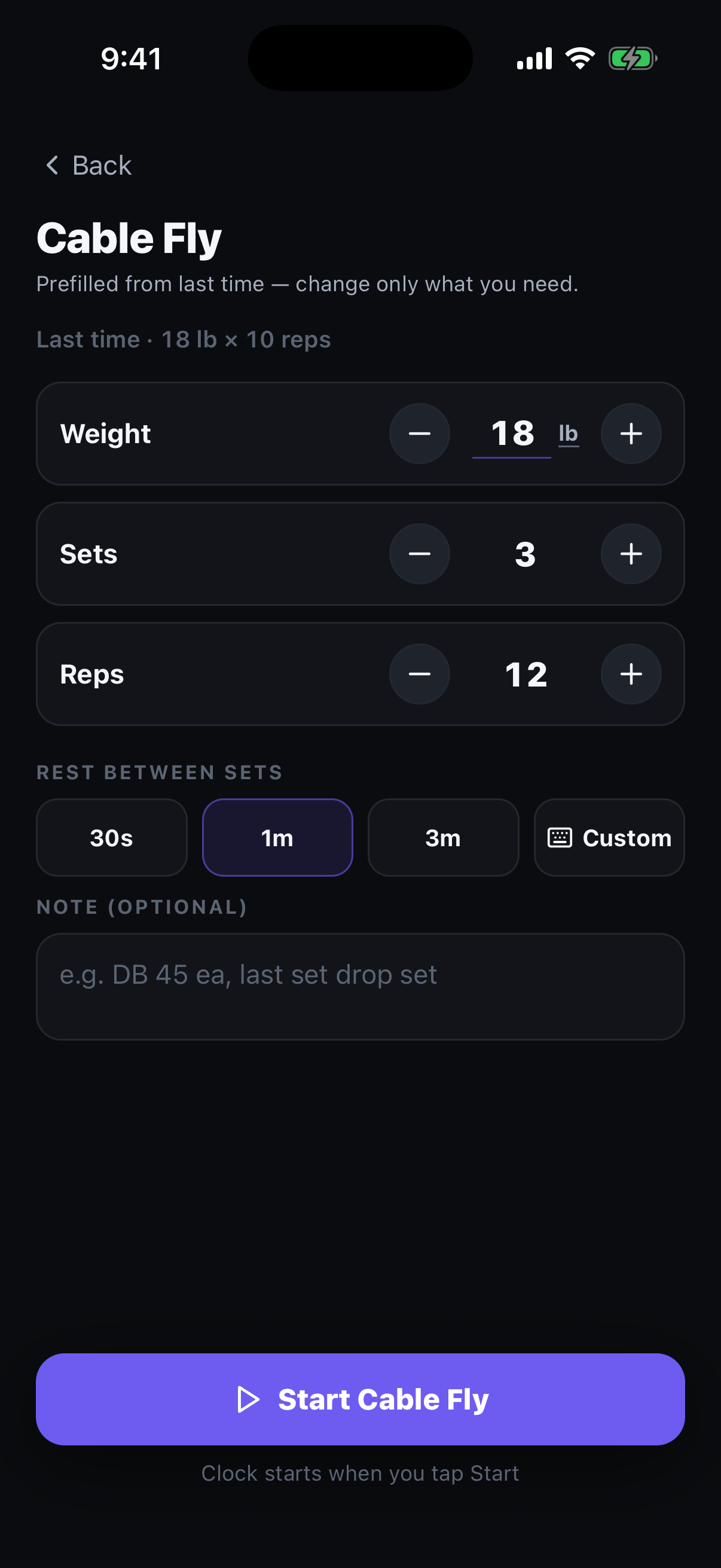
Return to a move and the app shows last time's numbers and fills them in.
How to
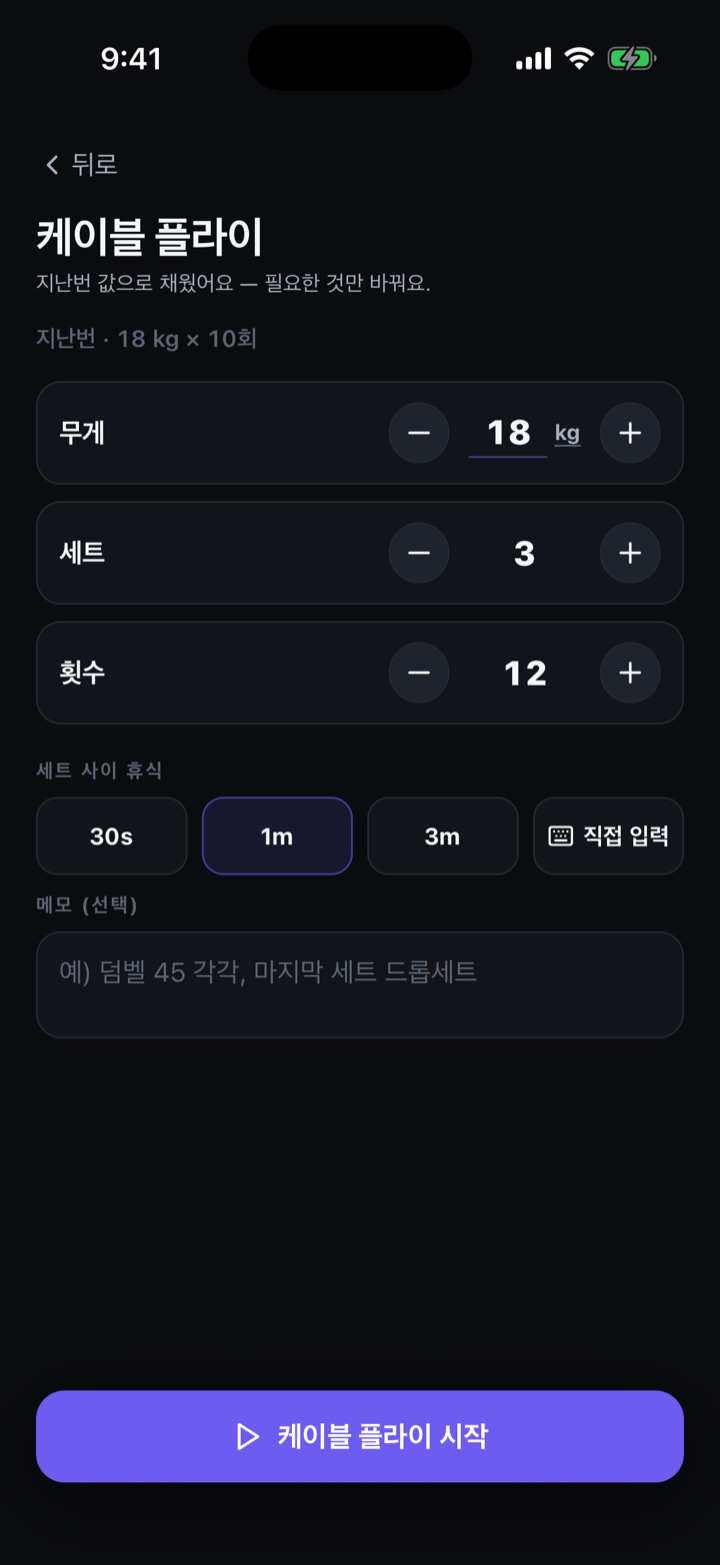
- Start a move and "last time · N reps" appears, with the sets pre-filled from last time.
- To repeat it, just proceed — nothing to type.
Double-tap to log ★
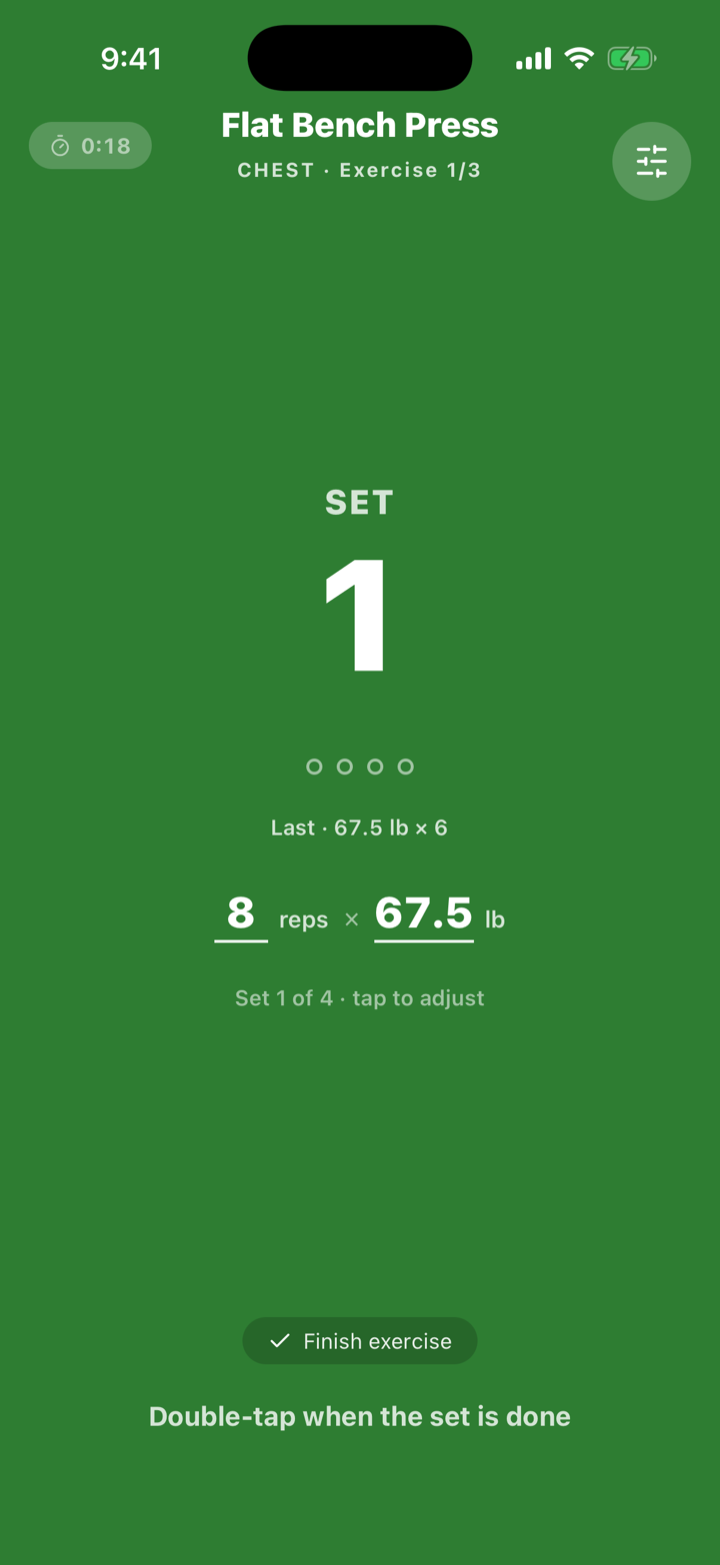
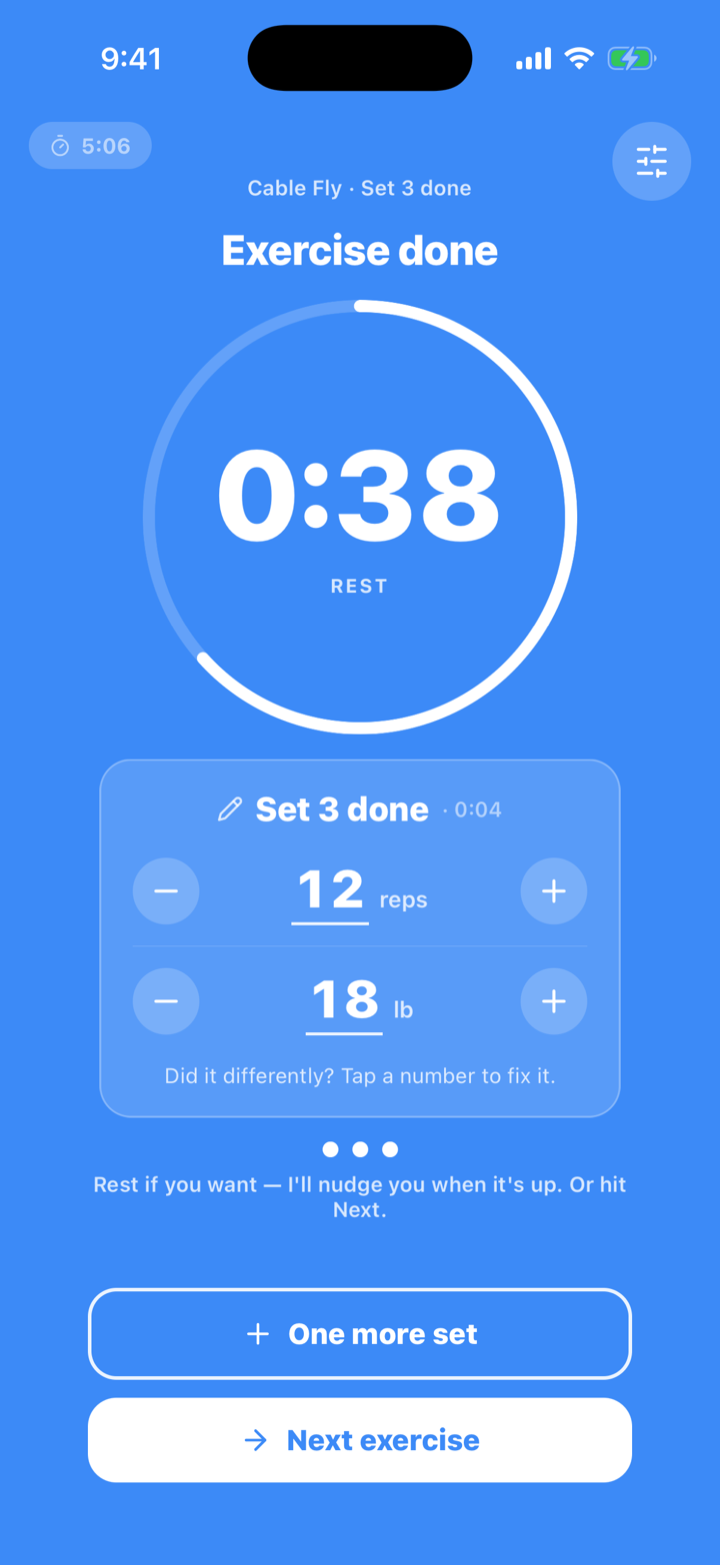
Finish a set, double-tap. It logs without looking.
How to
- When a set is done, double-tap the screen.
- It logs with last time's values, the completed set turns blue, and the rest timer starts immediately.
- Only when a number needs to change do you tap that set to edit.
Edit sets — built-in keypad
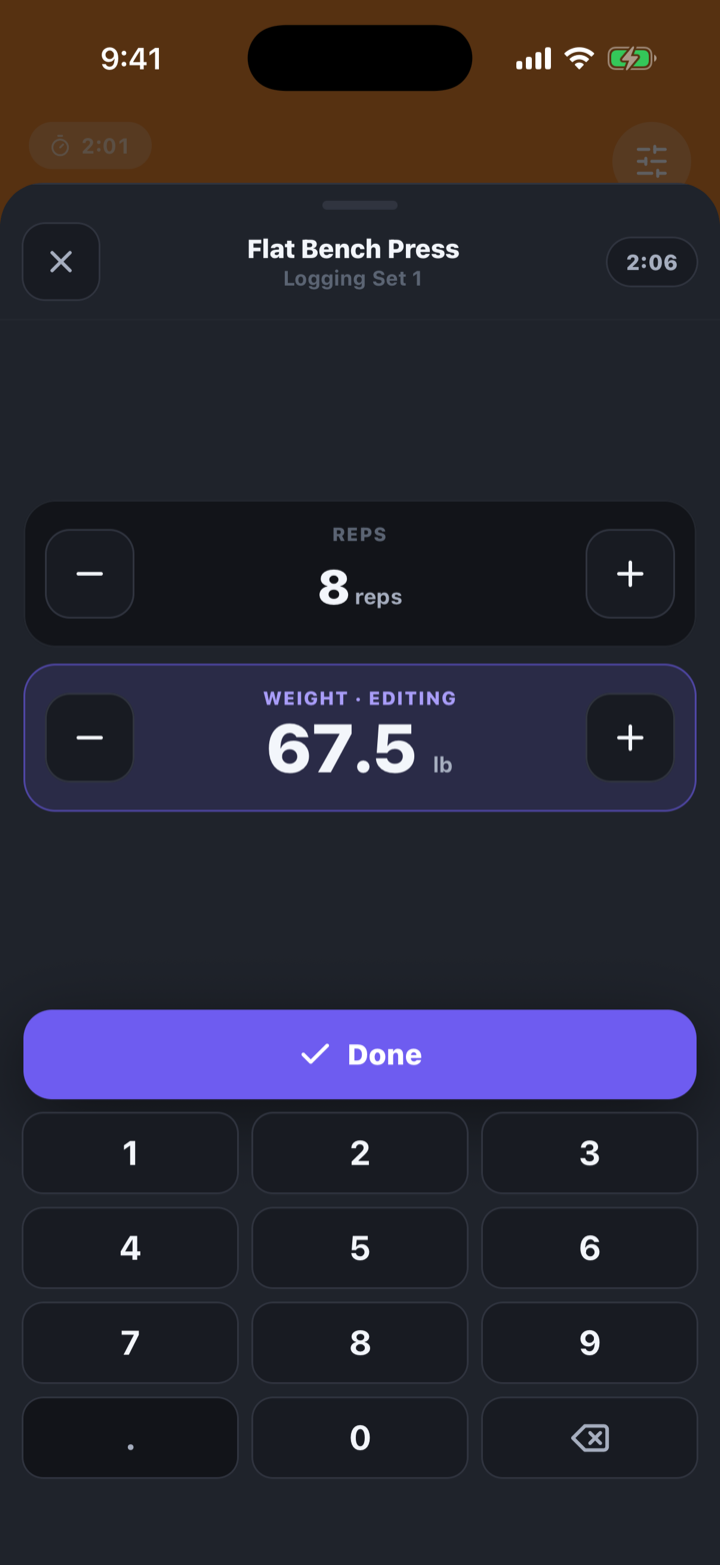
Change weight, reps, or rest with the app's own keypad.
How to
- Tap a value and the built-in keypad slides up.
- No OS keyboard covering the screen — quick edits with one hand.
Finish the workout
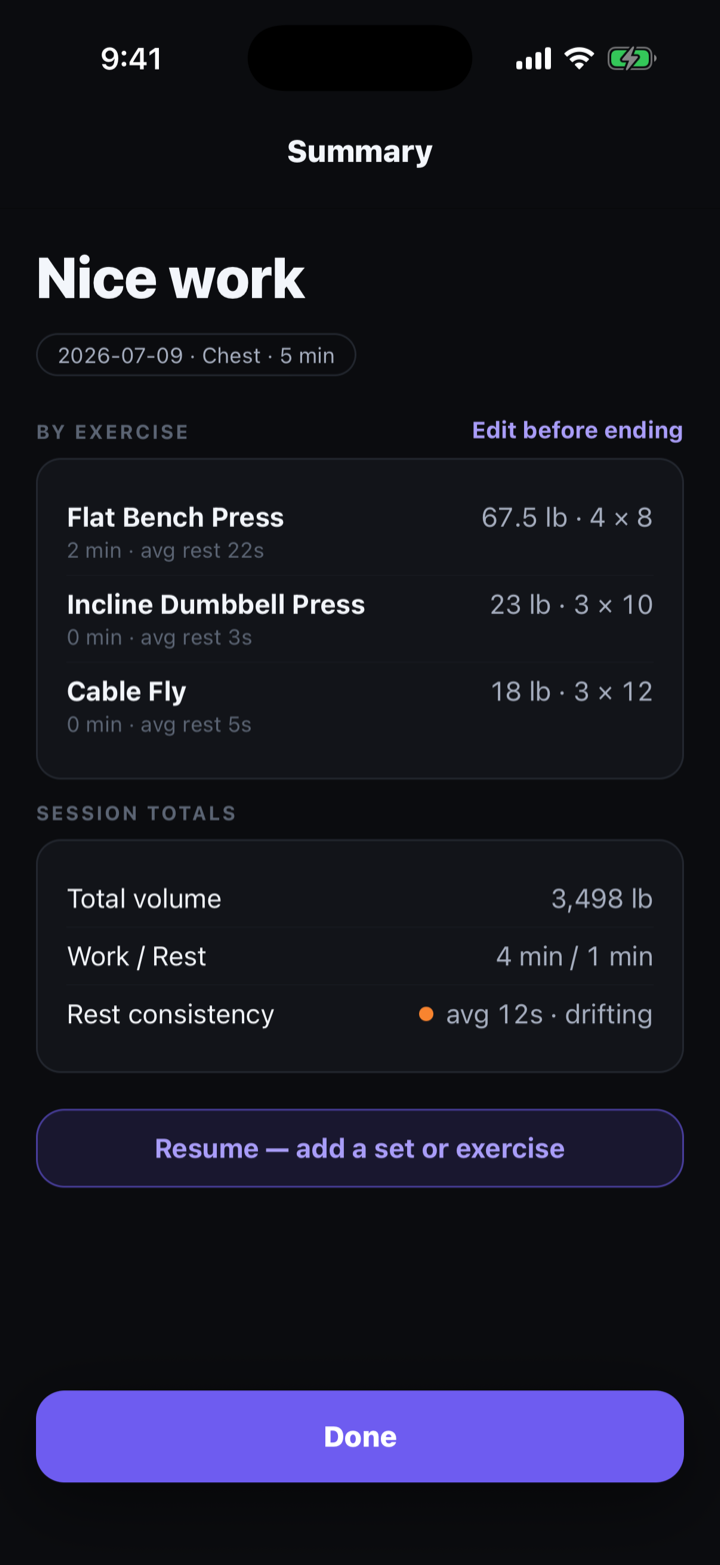
End a workout and get a clean summary.
How to
- On finish, a done card sums up the day's volume and sets.
- From the summary you can review and edit the day's log.
03 Rest & the nudge
The app times your rest and pulls you back when it drags. This is the heart of Hourcut.
Rest timer
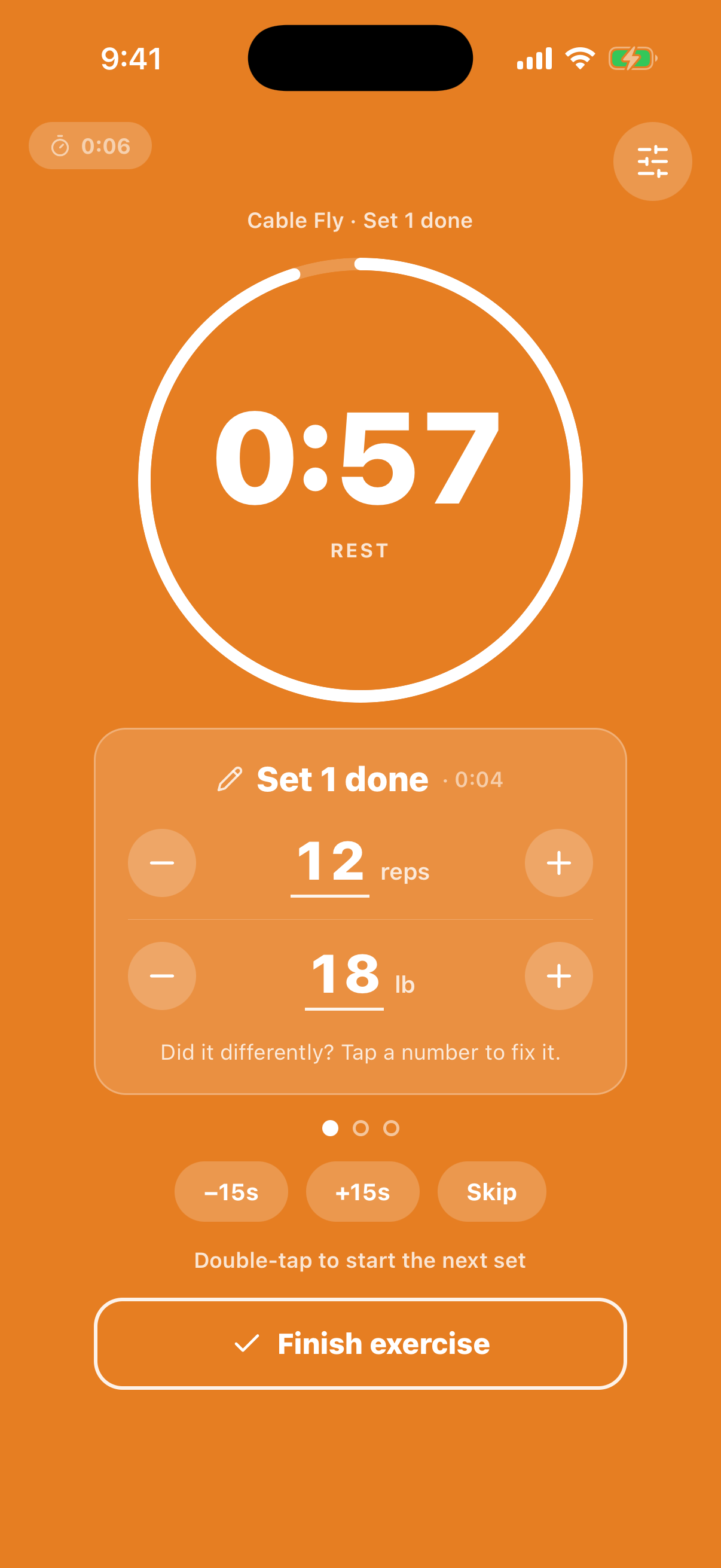
Log a set and the rest timer starts on its own.
How to
- The moment a set logs, the remaining rest shows large.
- When it ends, roll into the next set; if you run over, the overage shows too.
The nagging alert ★
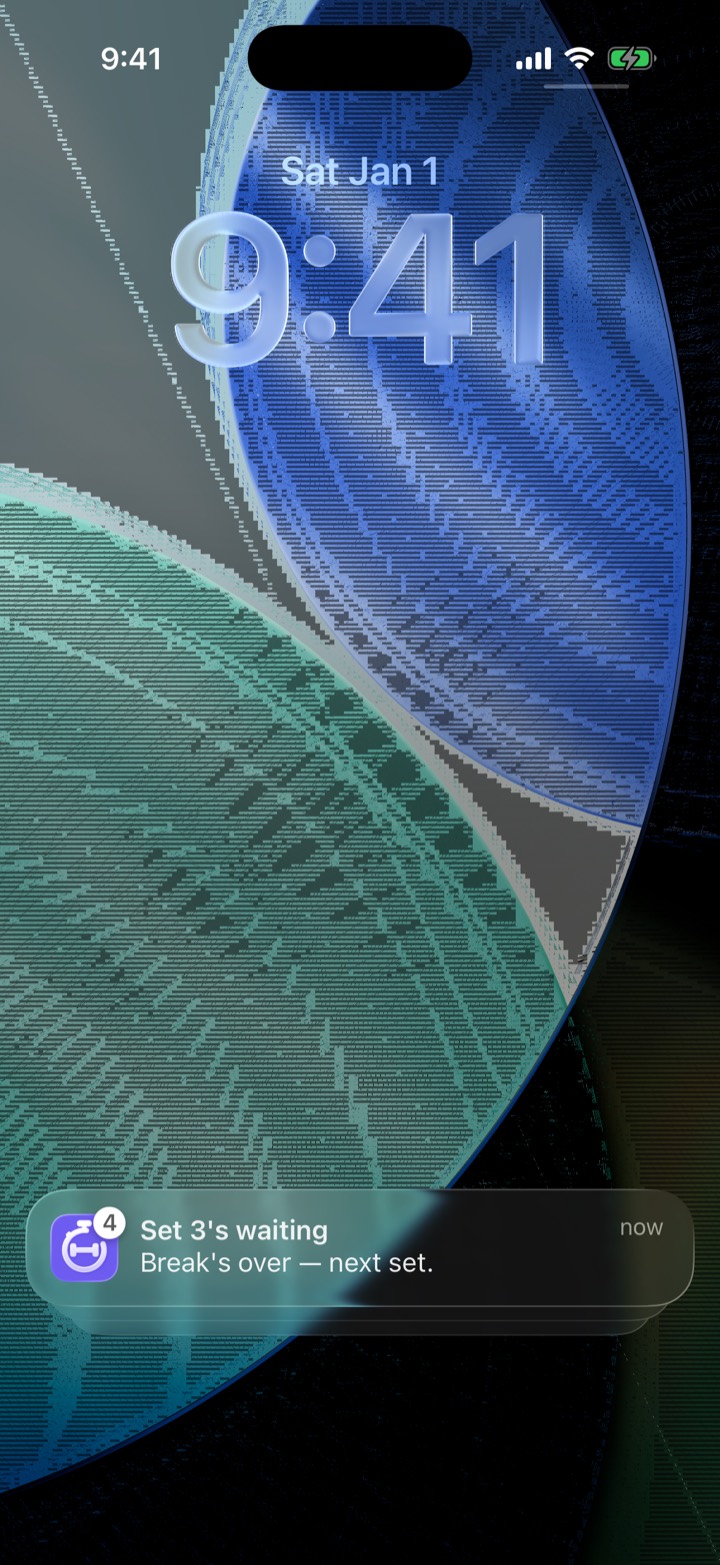
When rest runs long, the alert comes.
How to
- While you're in the app, it's sound and voice.
- If your screen is off or you've switched apps, a lock-screen notification (with vibration) pulls you back.
Tip — So even if you fiddle with your phone between sets, you won't miss the next one.
04 Supersets
Bundle alternating moves into one flow.
Build & run a superset
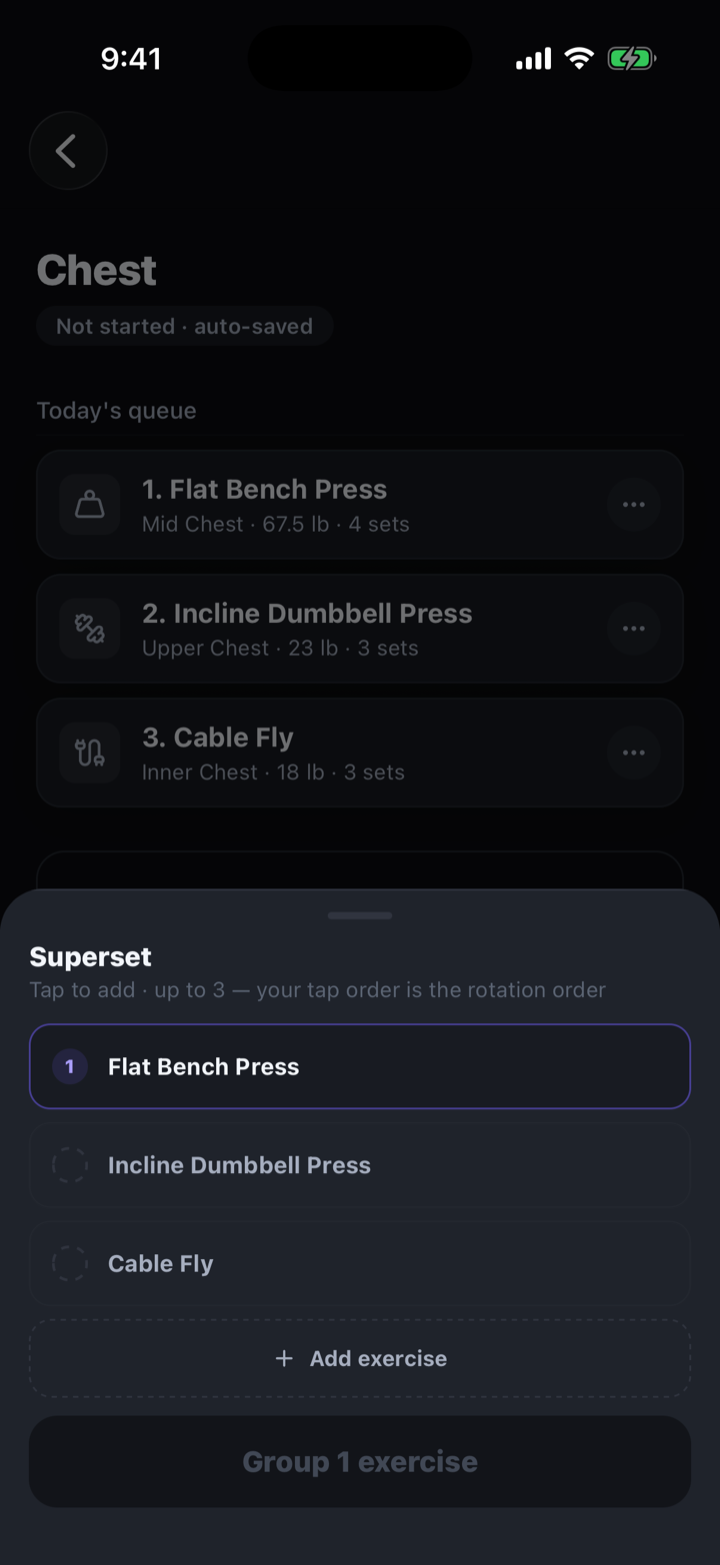
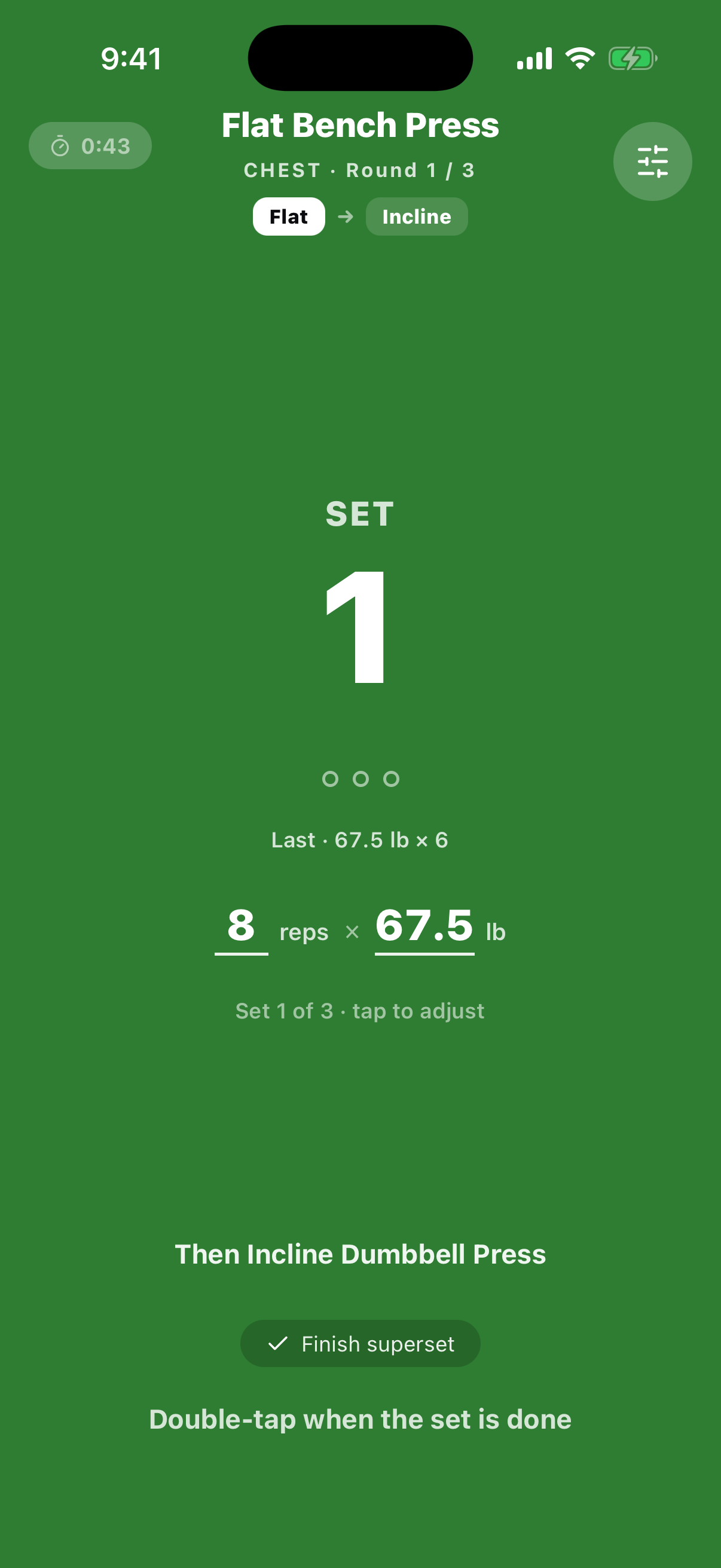
Group two or more moves and alternate through them.
How to
- In setup, group moves into a superset.
- While running, the app tracks order and rest so you always know which move is next.
05 Interval training
Rounds, rest, and countdown, run automatically.
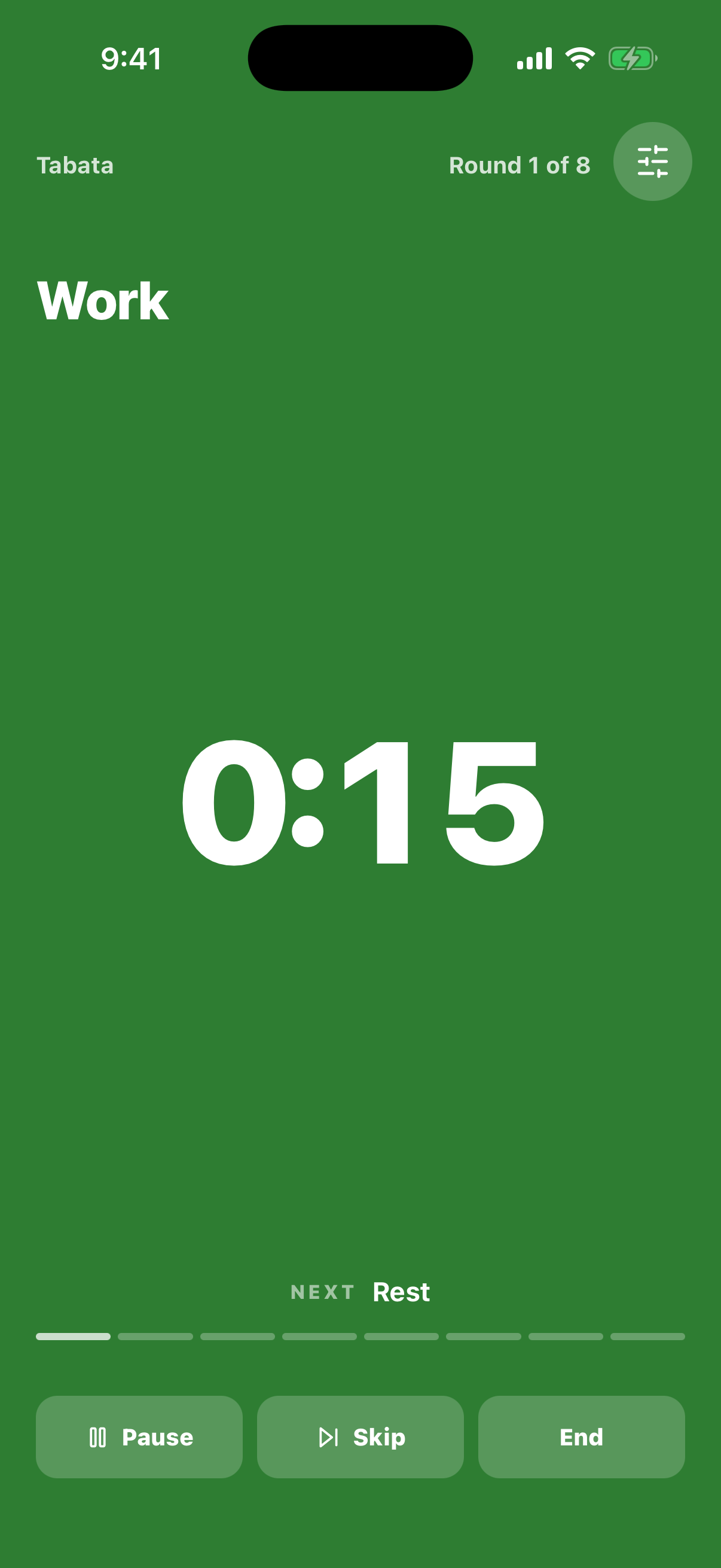
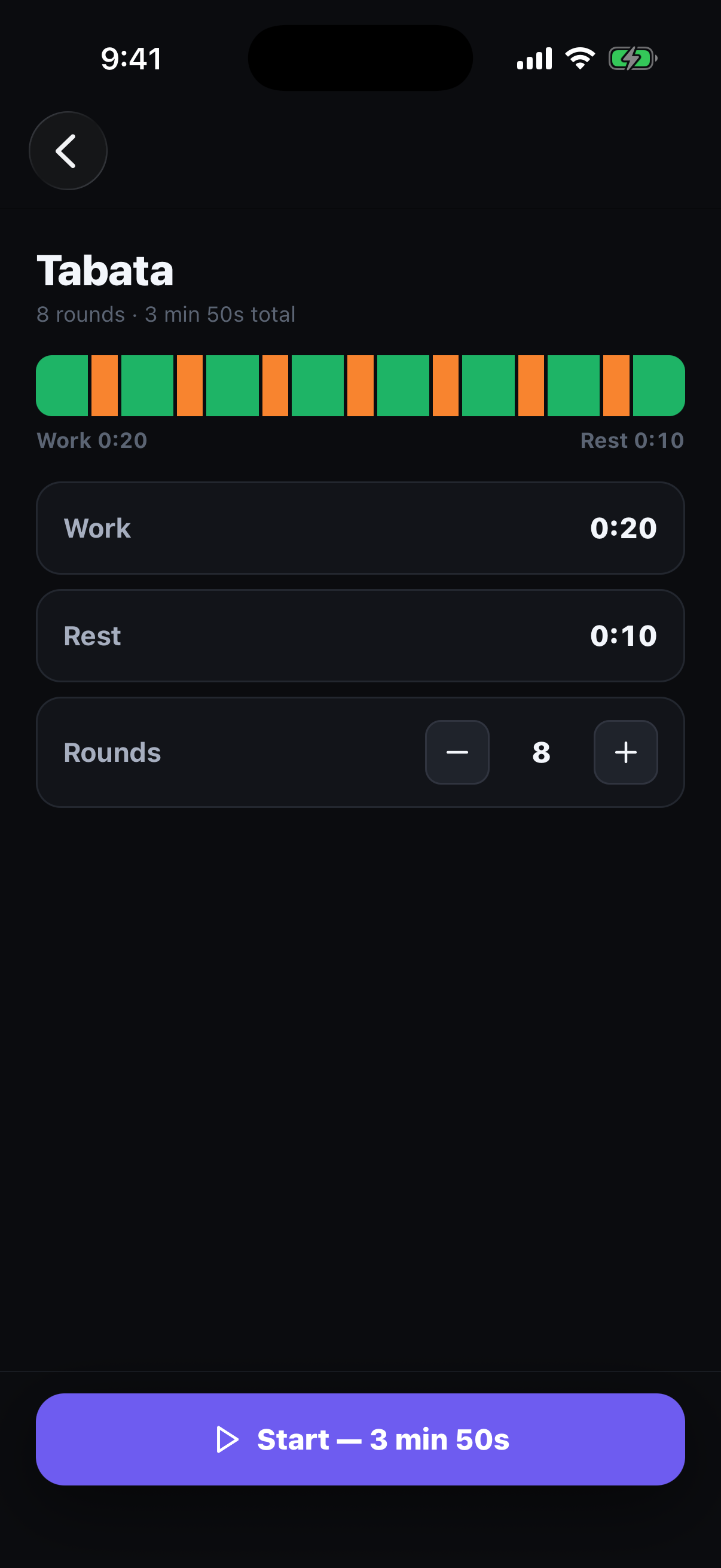
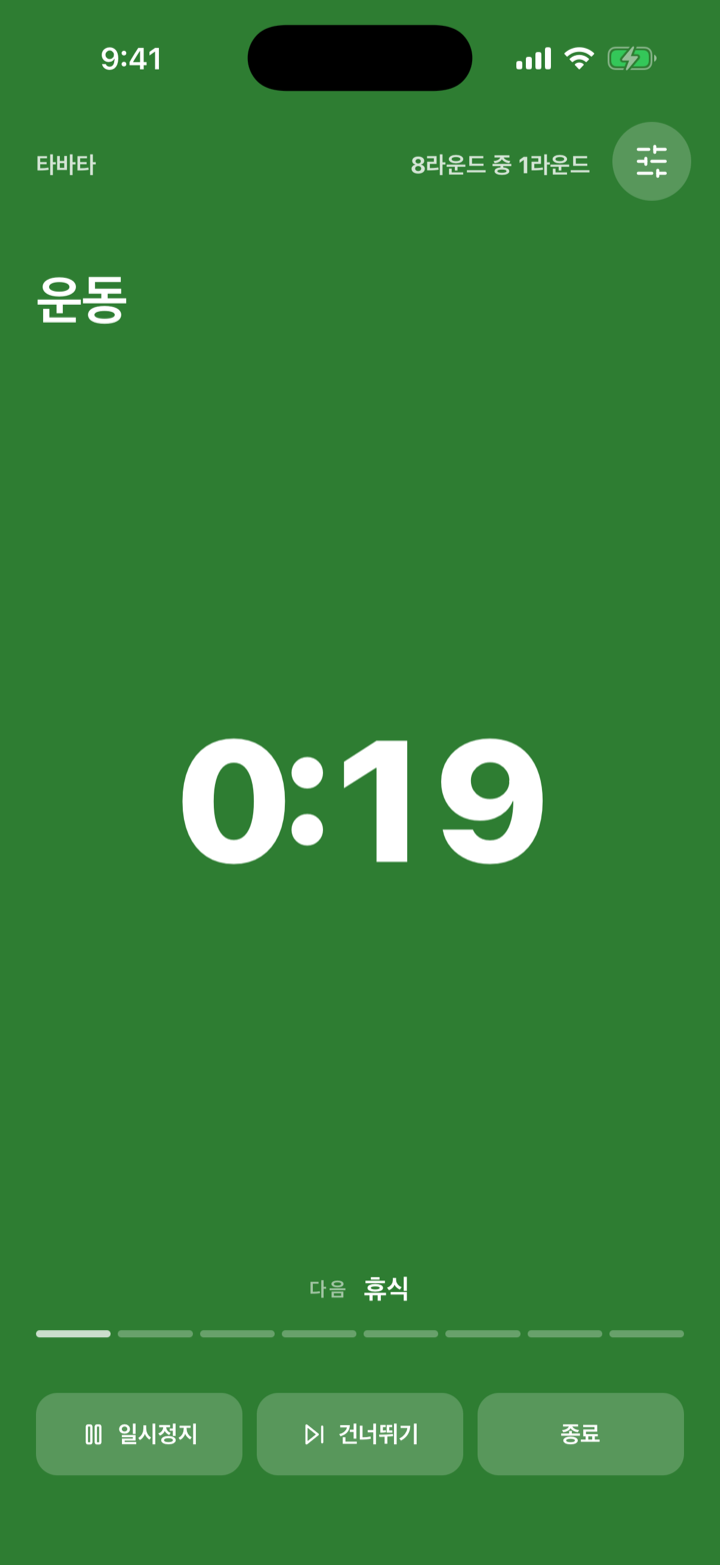
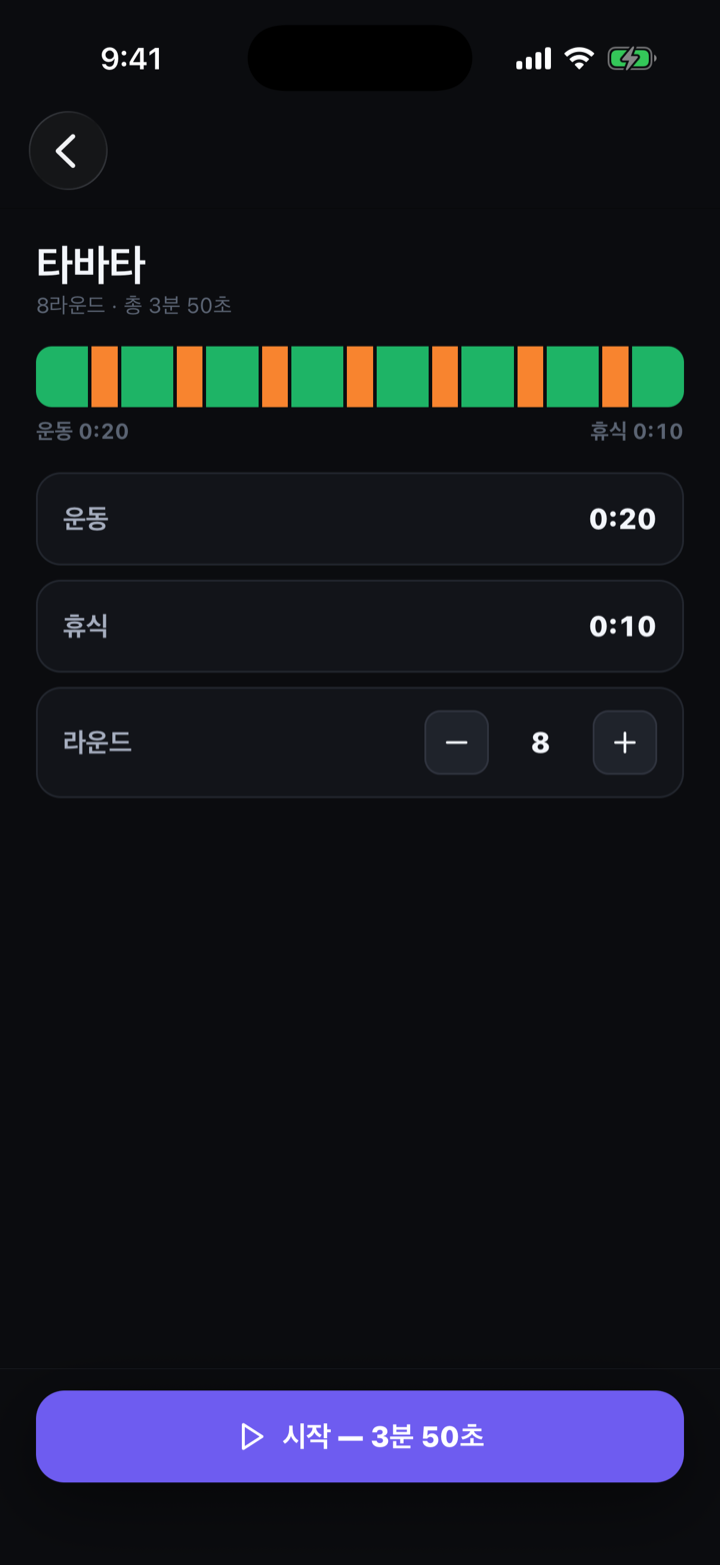
Interval session
Set work/rest times and rounds; the app runs them in order.
How to
- Build an interval program or pick a saved one.
- On start, work and rest alternate, with a countdown right before each switch.
- Saved programs are reused as-is next time.
06 Cardio programs
Follow a day-by-day plan for running, walking, stairs, or elliptical.
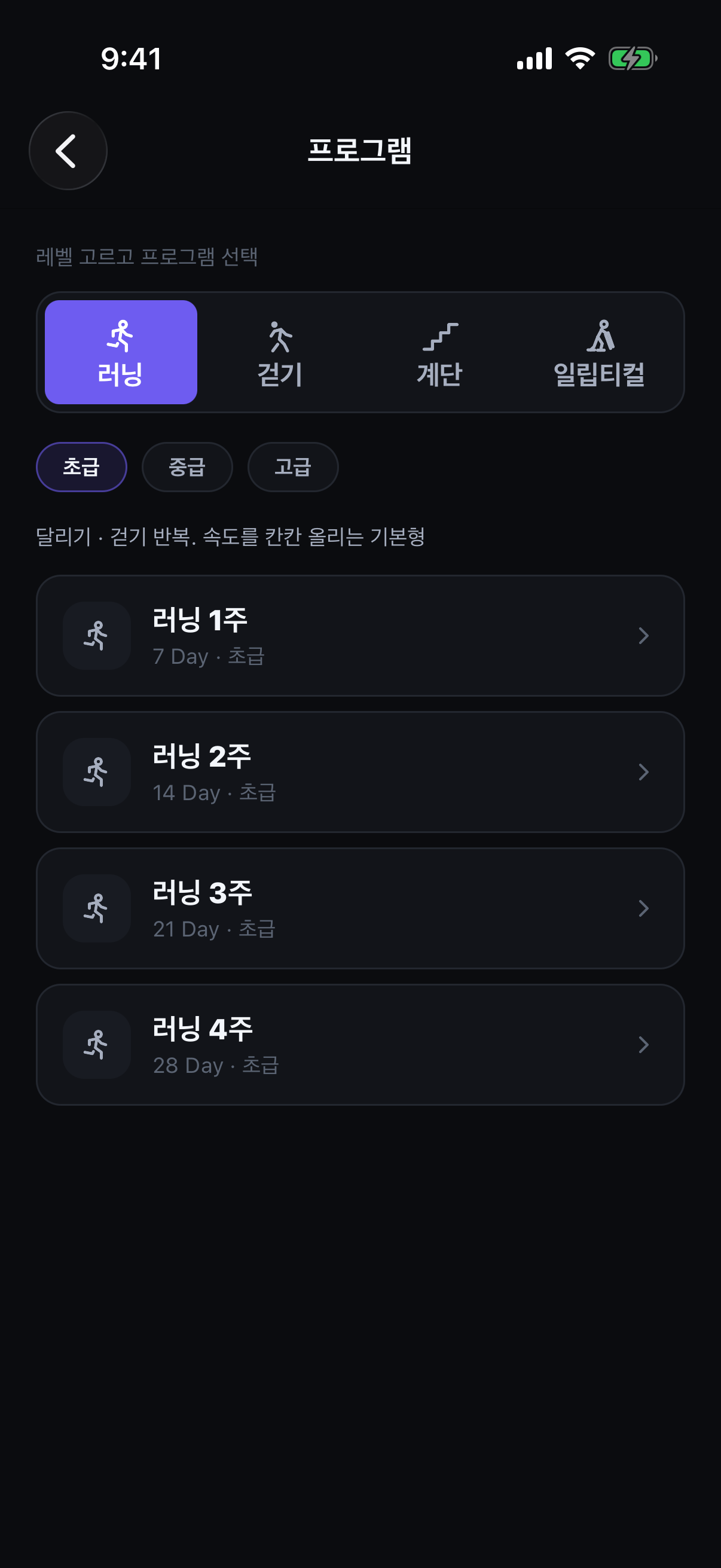
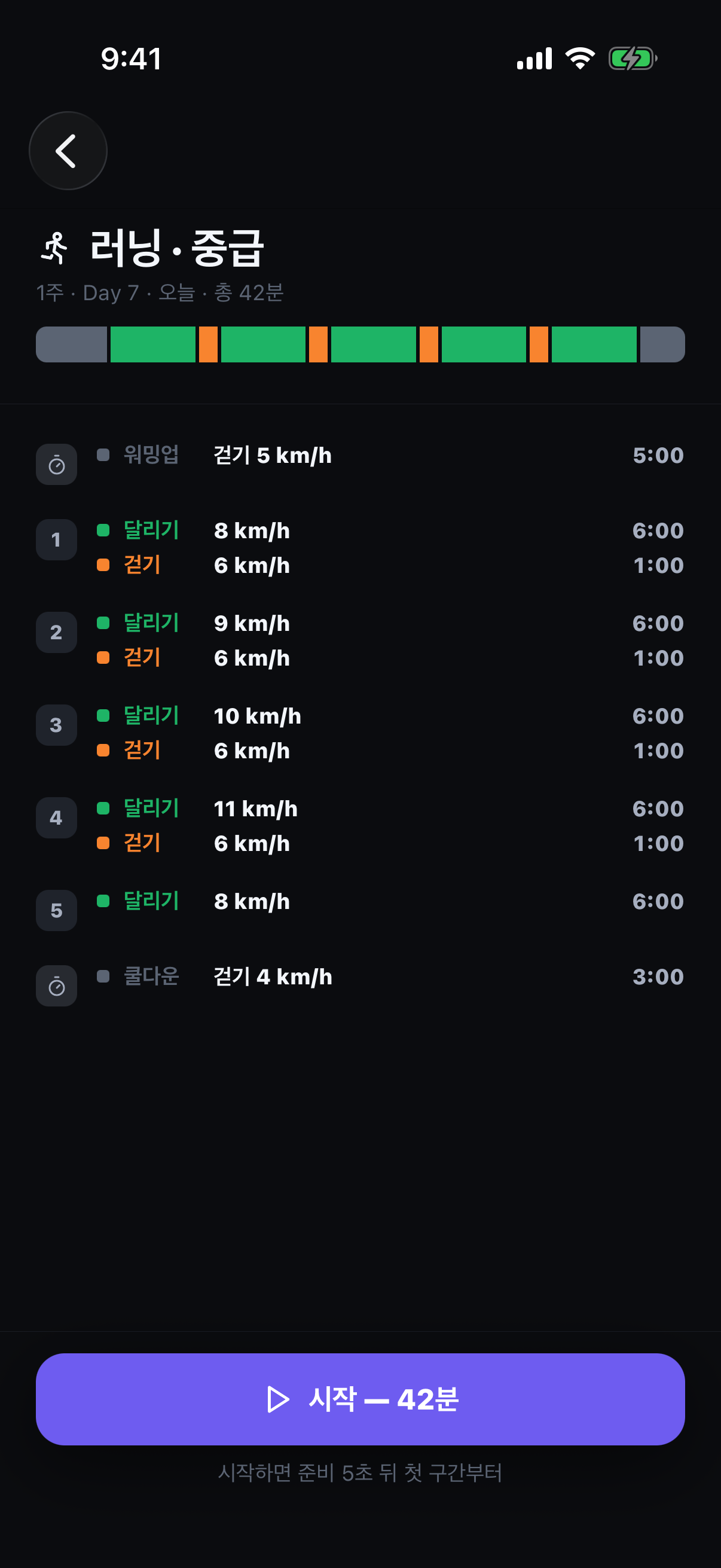
Follow a cardio program ★
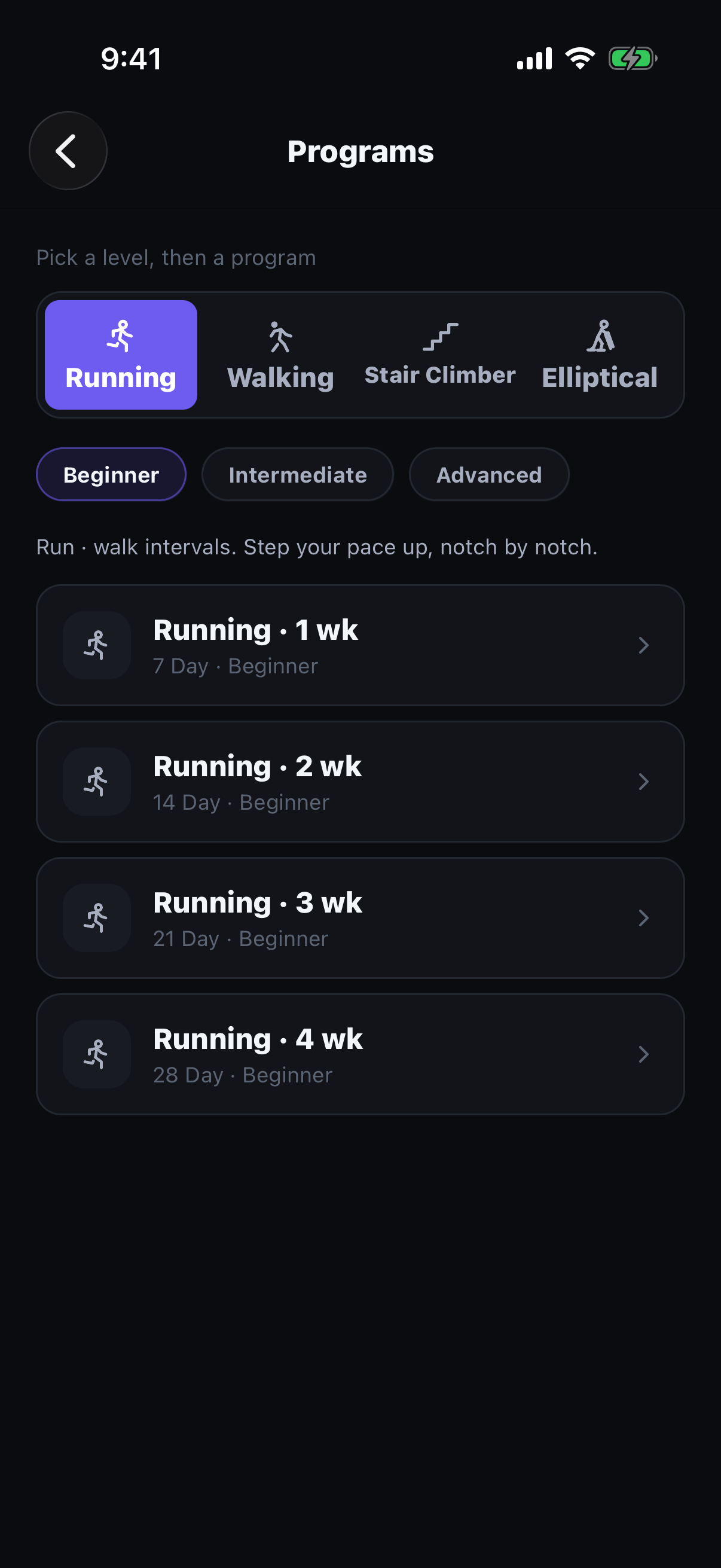
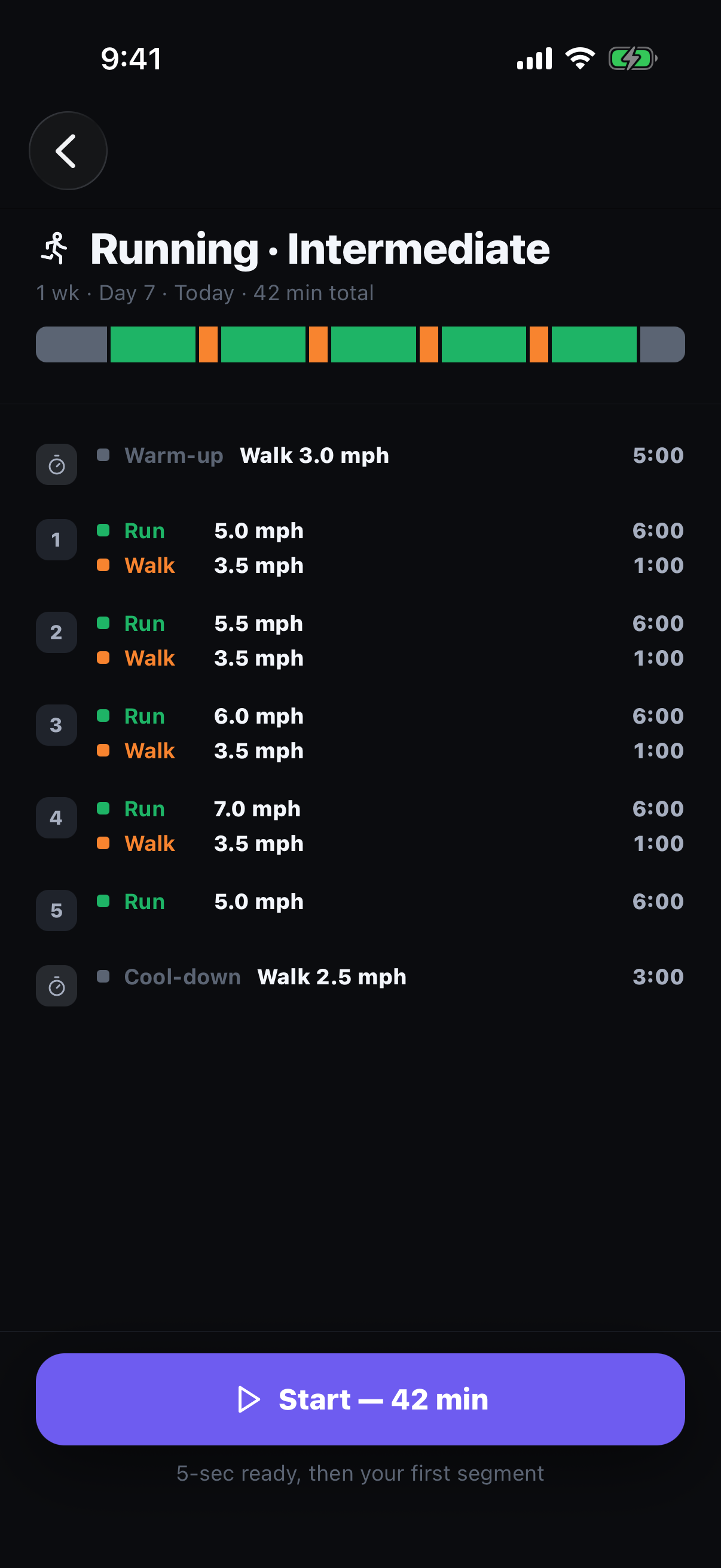
Pick a cardio type and a level, and the app lays out each day for you — getting a little longer and harder as you go.
How to
- Choose a cardio type — running, walking, stairs, or elliptical — then a level from beginner to advanced.
- Preview the plan before you start: every day's time and pace is laid out, so you know what today holds.
- Start the day. The app guides pace and time, and your progress is saved so the next day picks up where you left off.
Tip — New to running? Start with walking. Programs ease you in and build up gradually, so later days go longer than the first.
07 History & filters
Find past records by muscle or move, and scan them on a calendar.
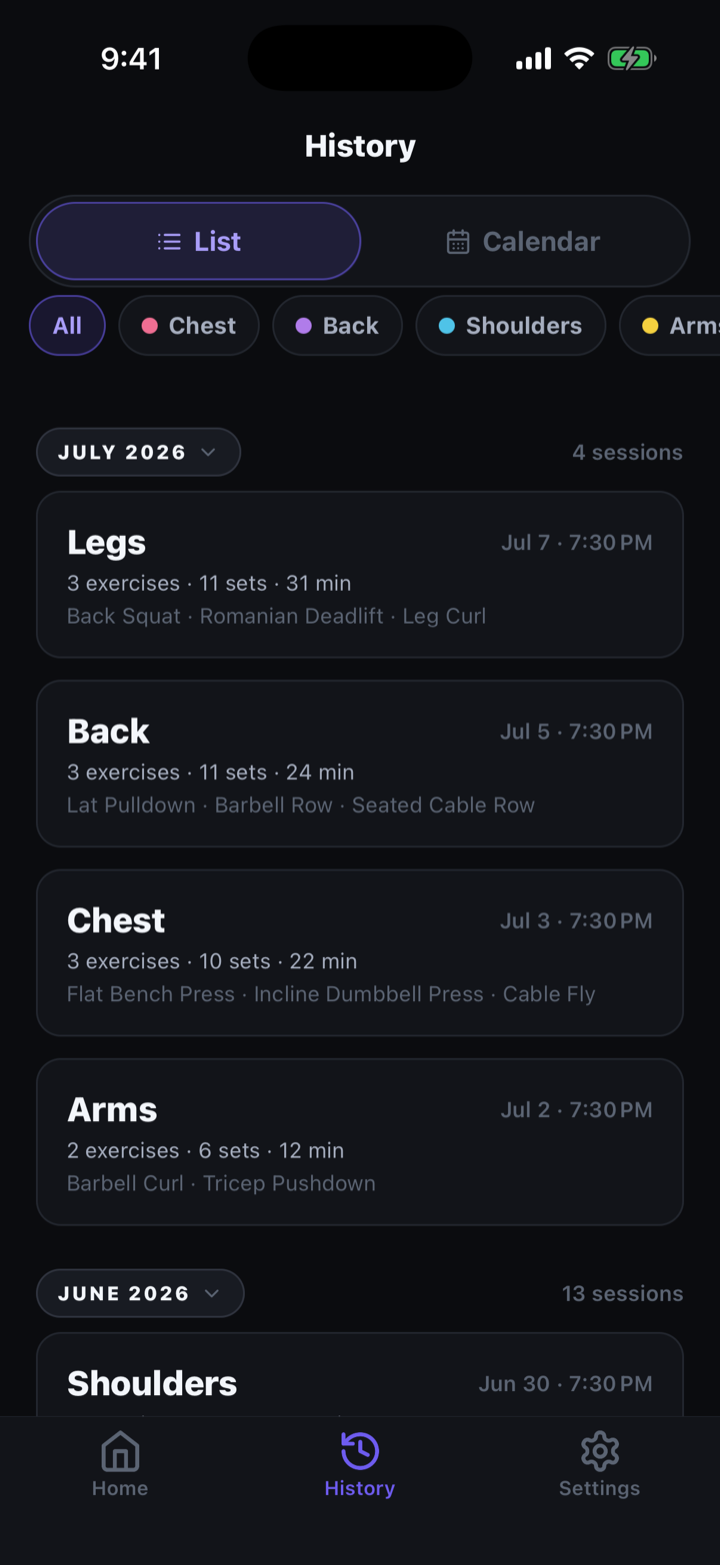
Filter your records ★
Filter everything you've logged by muscle group or move.
How to
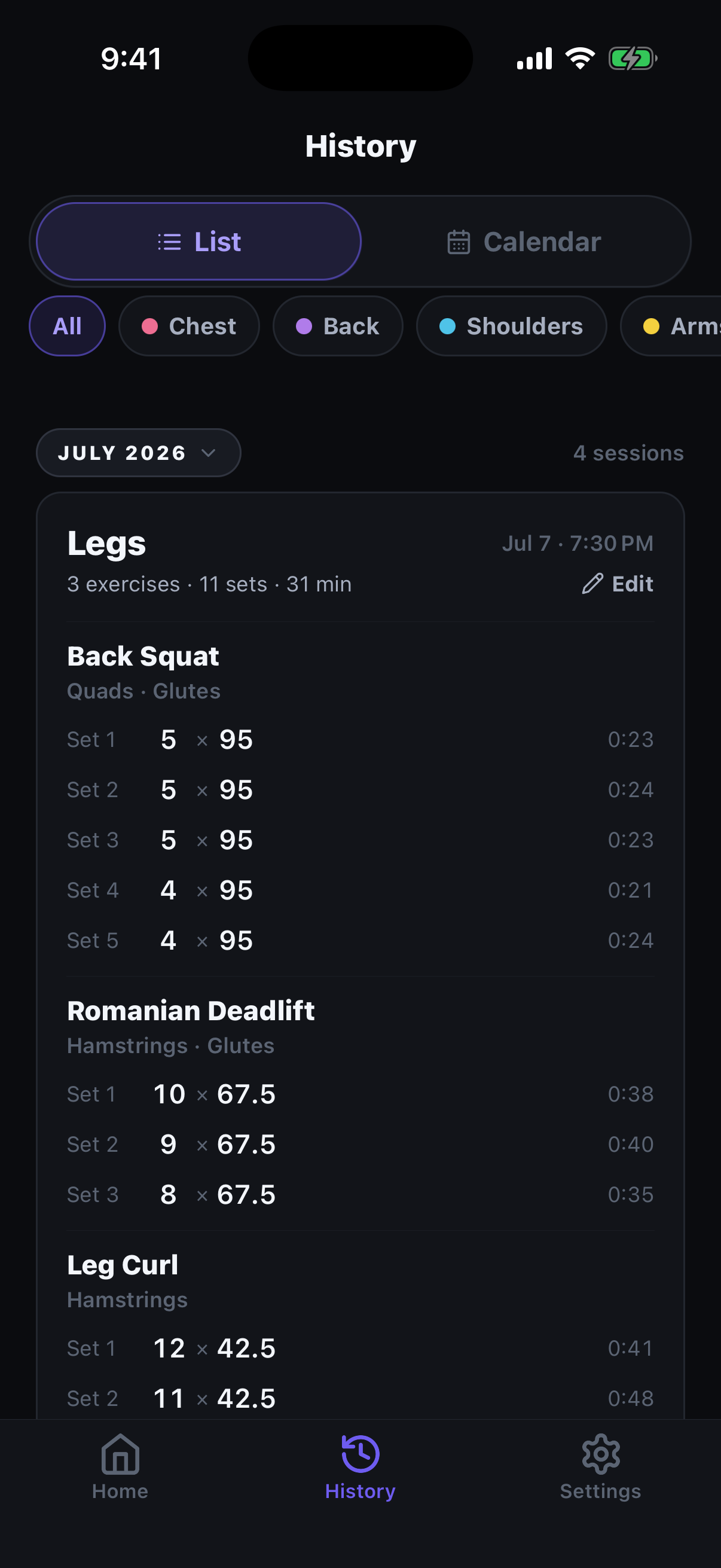
- In History, filter by muscle group or move.
- Open a record to review and edit that day's sets.
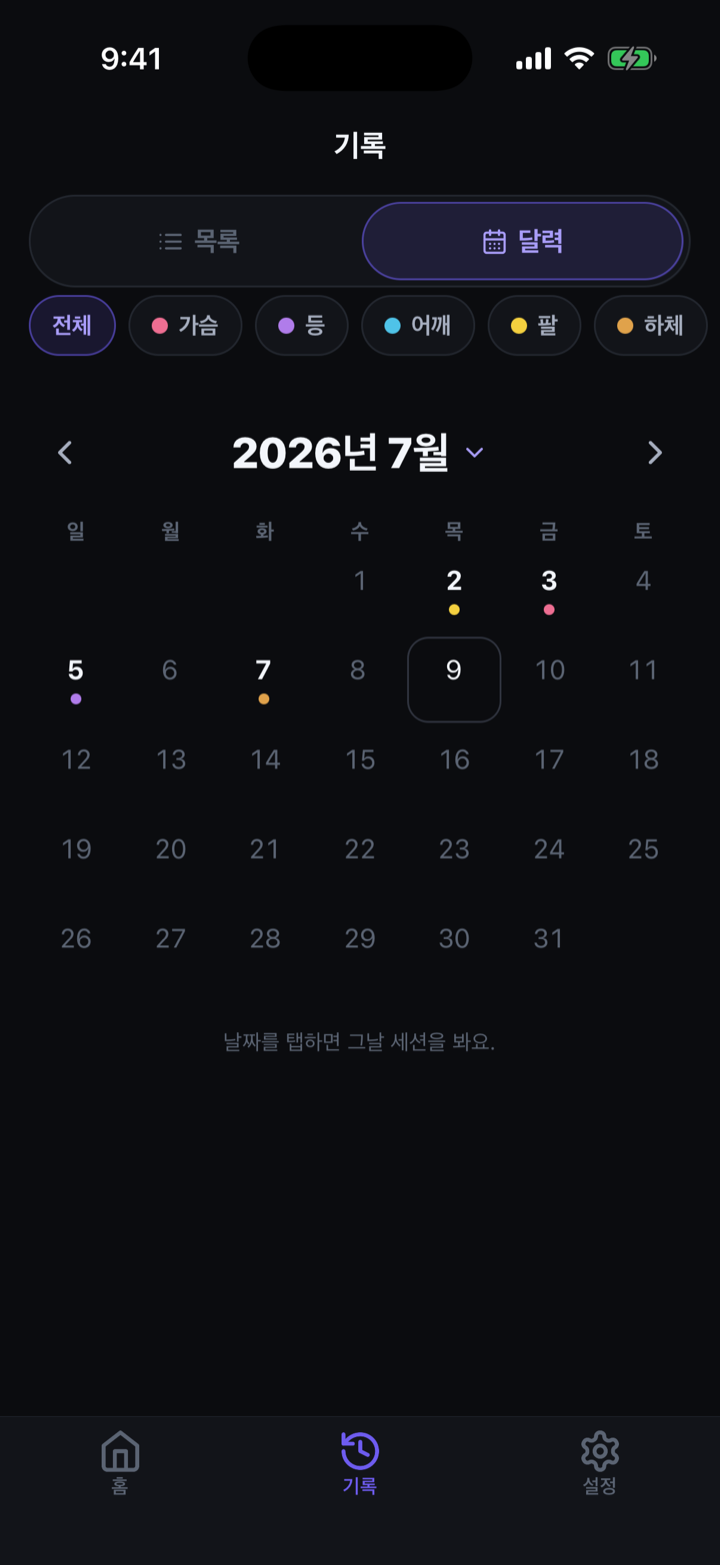
Calendar view
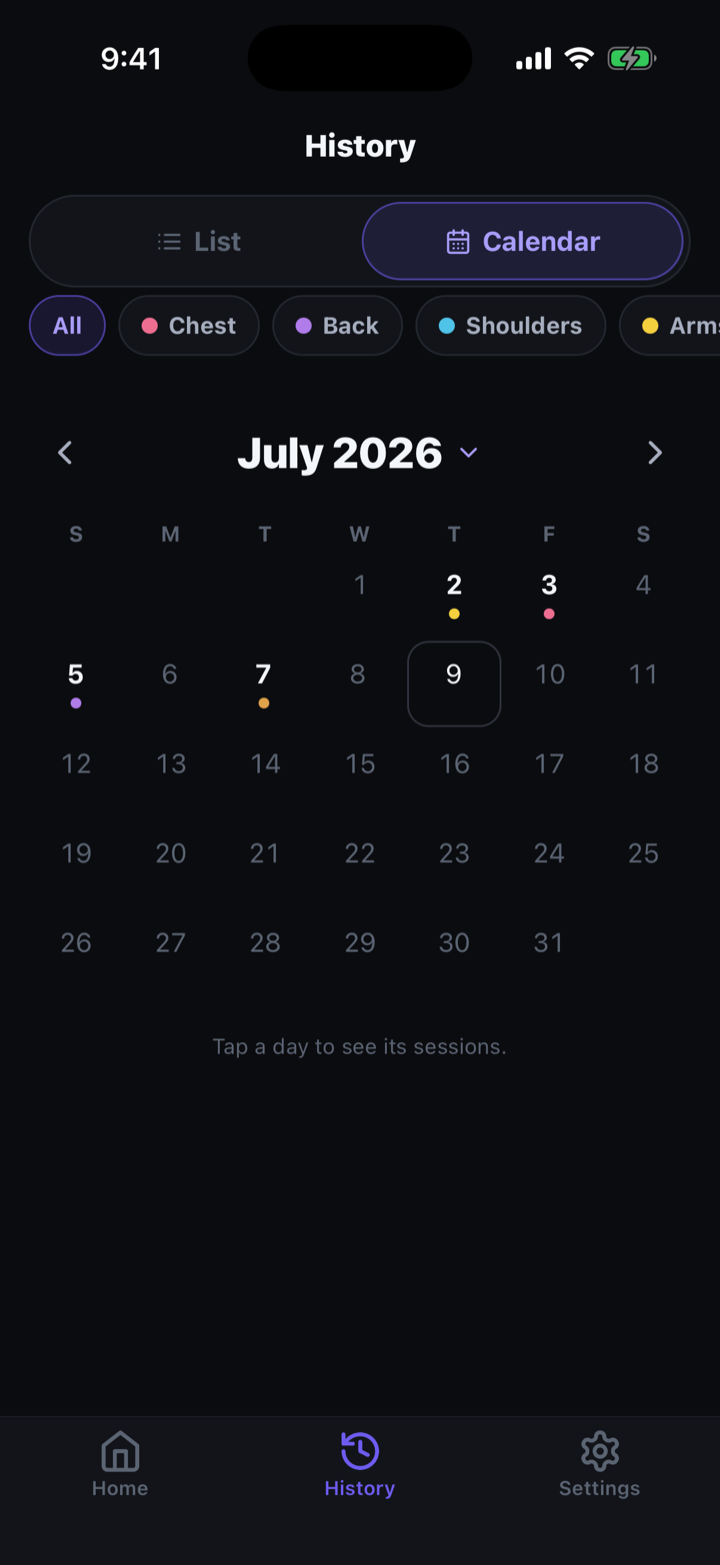
Your training days show on a calendar.
How to
- Switch to calendar to see marked training days.
- Tap a date to see that day's workout.
08 Settings & backup
Your data stays on your device. Export and restore when needed.
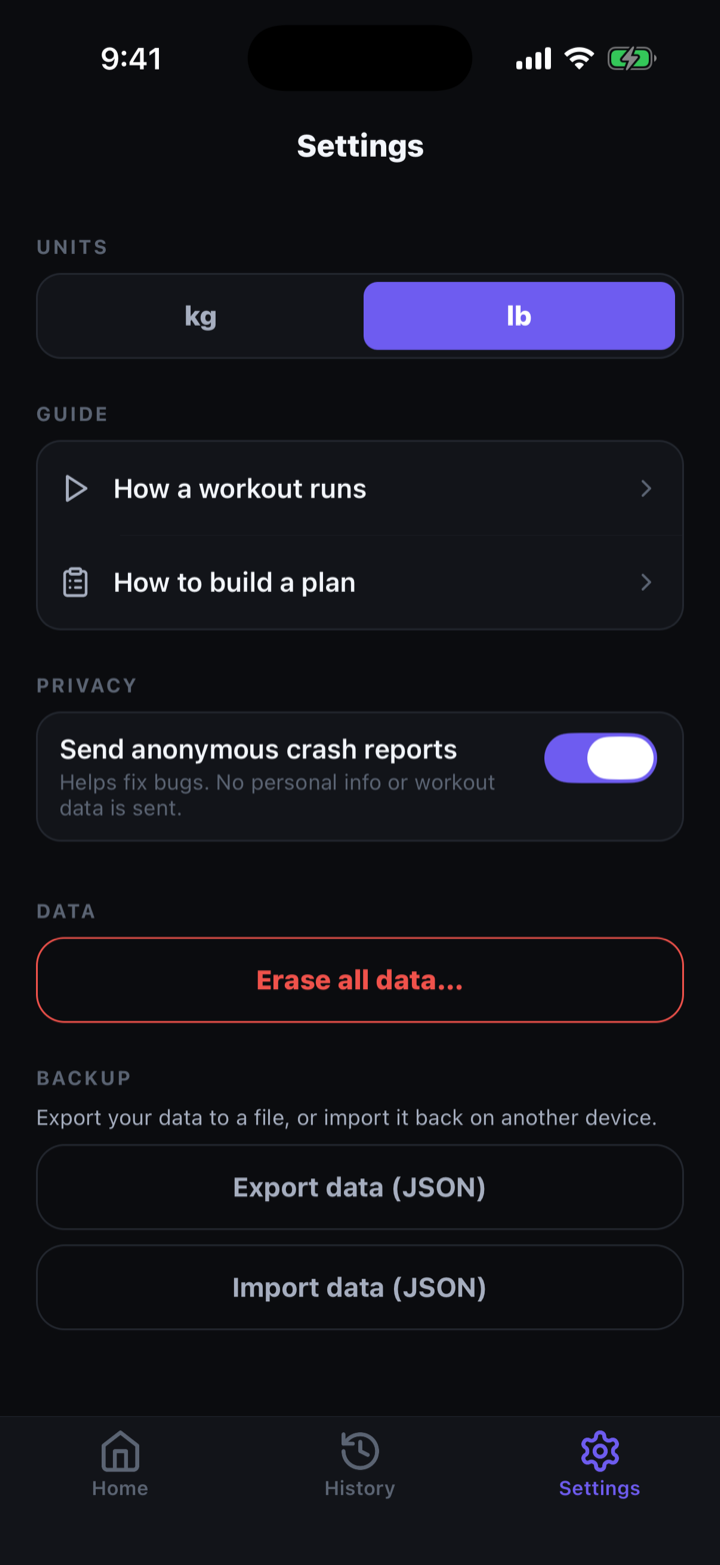
Backup & restore
Export your logs to a file and restore them.
How to
- In Settings, export your logs to a file.
- On a new device or reinstall, restore from that file.
09 Coming soon
Landing in the next update.
Exercise detail (SOON)
Tap an exercise name to see which muscles it works and how to do it — reachable anywhere the name appears.
운동할 때 딴짓 못 하게, 옆에서 잔소리하는 PT
Hourcut은 쉬는 시간(dead time)을 잘라내는 운동 기록 앱입니다. 세트는 더블탭 한 번으로 기록되고, 휴식은 앱이 재고, 늘어지면 알림이 옵니다. 아래는 각 기능을 실제 화면과 함께 단계별로 설명합니다.
01 시작하기
운동은 한 번에 하나입니다. 오늘 할 운동을 짜고 바로 시작합니다.
운동 셋업
종목을 고르고 세트·횟수·무게를 짜서 오늘 운동을 구성합니다.
이렇게 씁니다
- 셋업 화면에서 "종목 추가"를 열면 종목 목록이 시트로 뜹니다.
- 종목을 고르면 오늘 운동에 추가됩니다. 여러 개를 이어서 담을 수 있습니다.
- 각 종목의 세트·횟수·무게를 채웁니다. 지난번에 한 종목은 그 값이 이미 들어와 있습니다.
팁 — 지난 기록이 있으면 "지난번 · N회"가 함께 표시돼, 그대로 갈지 올릴지 바로 판단할 수 있습니다.
퀵 시작
계획 없이 바로 운동하고 싶을 때.
이렇게 씁니다
- 퀵 시작으로 종목 하나만 잡고 바로 시작합니다.
- 하면서 세트를 채워갑니다. 미리 계획을 짜둘 필요가 없습니다.
02 운동 기록
화면을 계속 볼 필요가 없습니다. 몸에 집중하고, 기록은 앱이 챙깁니다.
지난 기록 자동 표시 ★
같은 종목을 다시 하면 지난번 무게·횟수를 보여주고 그 값으로 채워줍니다.
이렇게 씁니다
- 종목을 시작하면 상단에 "지난번 · N회"가 뜨고, 세트에 지난 값이 미리 들어옵니다.
- 그대로 가려면 손댈 필요 없이 바로 진행합니다.
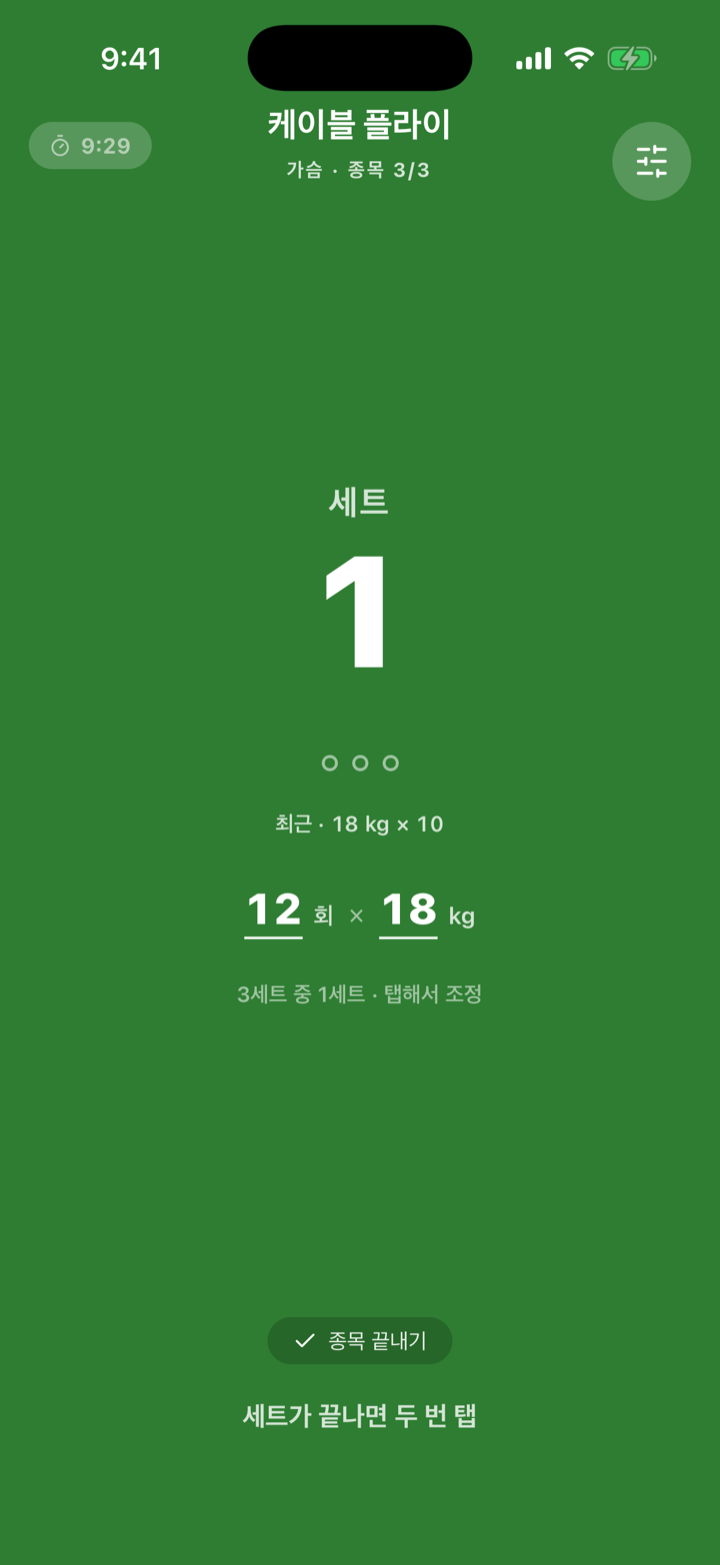
더블탭 자동기록 ★
세트가 끝나면 화면을 더블탭. 화면을 안 봐도 기록됩니다.
이렇게 씁니다
- 세트를 마치면 화면을 두 번 탭합니다.
- 지난 값 그대로 기록되고, 완료된 세트는 파란색으로 표시되며, 휴식 타이머가 바로 시작됩니다.
- 무게나 횟수를 바꿔야 할 때만 그 세트를 눌러 고칩니다.
세트 편집 — 전용 키패드
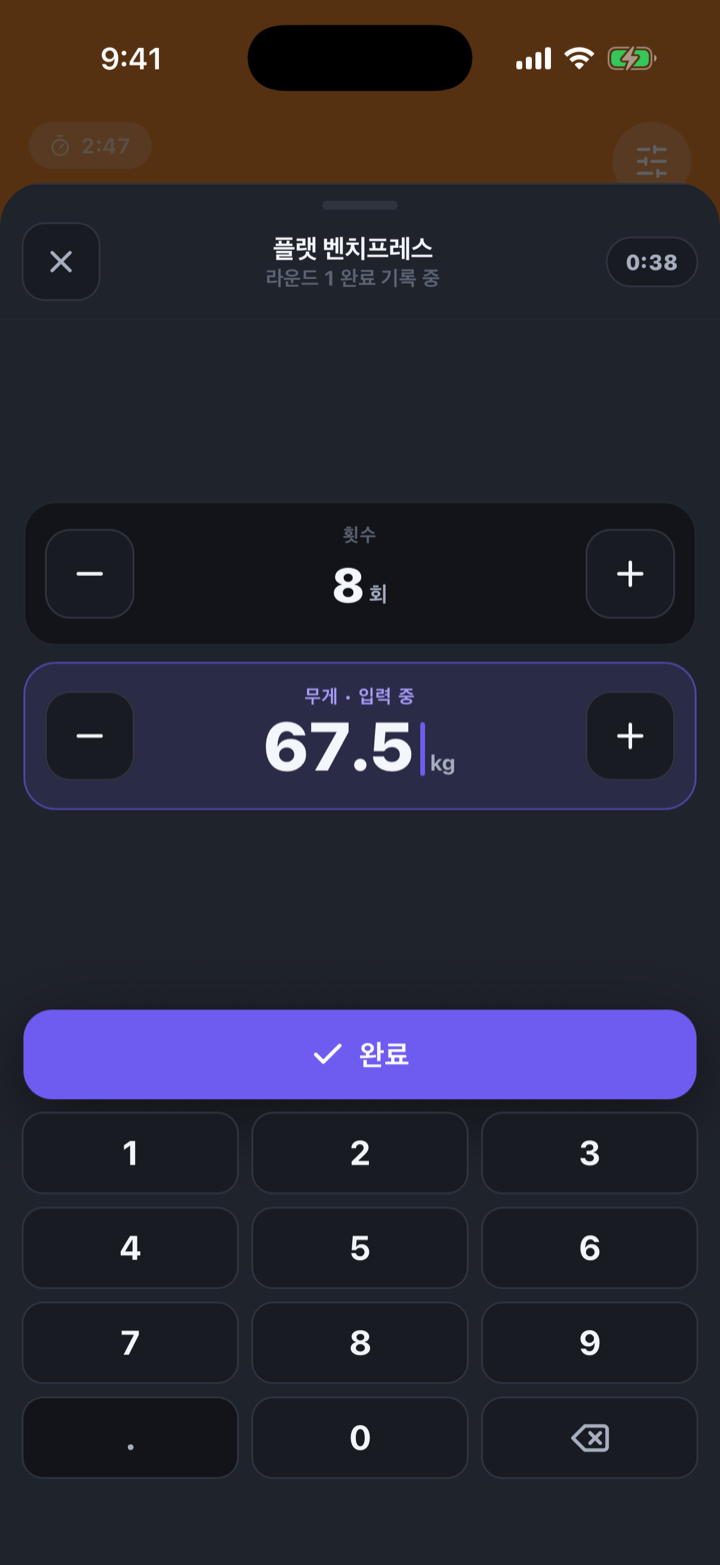
무게·횟수·휴식을 앱 안의 전용 키패드로 고칩니다.
이렇게 씁니다
- 값을 누르면 화면 아래에서 전용 키패드가 올라옵니다.
- OS 키보드가 화면을 가리지 않아, 한 손으로 빠르게 고칩니다.
운동 마무리
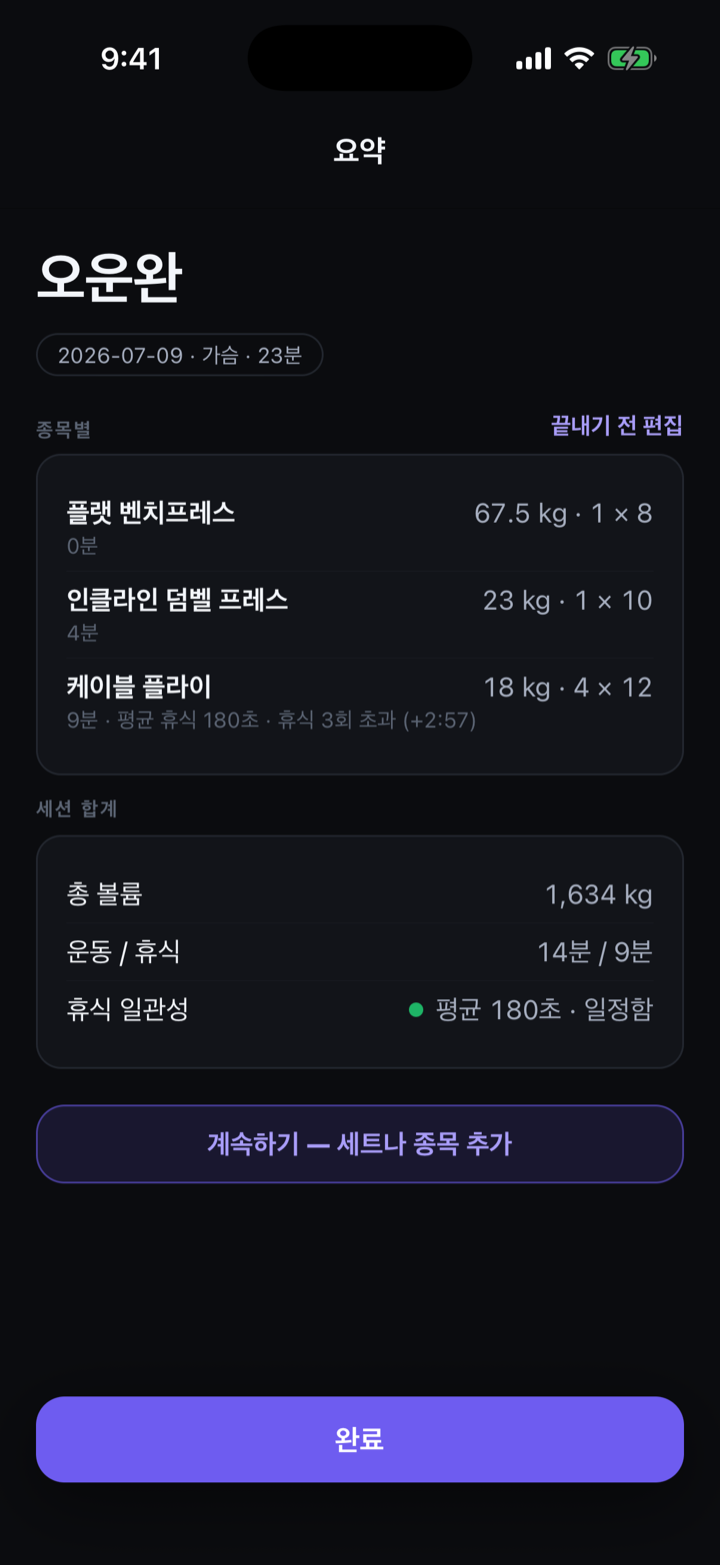
운동을 끝내면 그날의 요약이 정리됩니다.
이렇게 씁니다
- 운동을 끝내면 완료 카드로 그날의 볼륨·세트가 정리됩니다.
- 요약에서 그날 기록을 바로 확인·수정할 수 있습니다.
03 휴식 & 잔소리 알림
휴식을 앱이 재고, 늘어지면 알림으로 붙잡습니다. 이게 Hourcut의 핵심입니다.
휴식 타이머
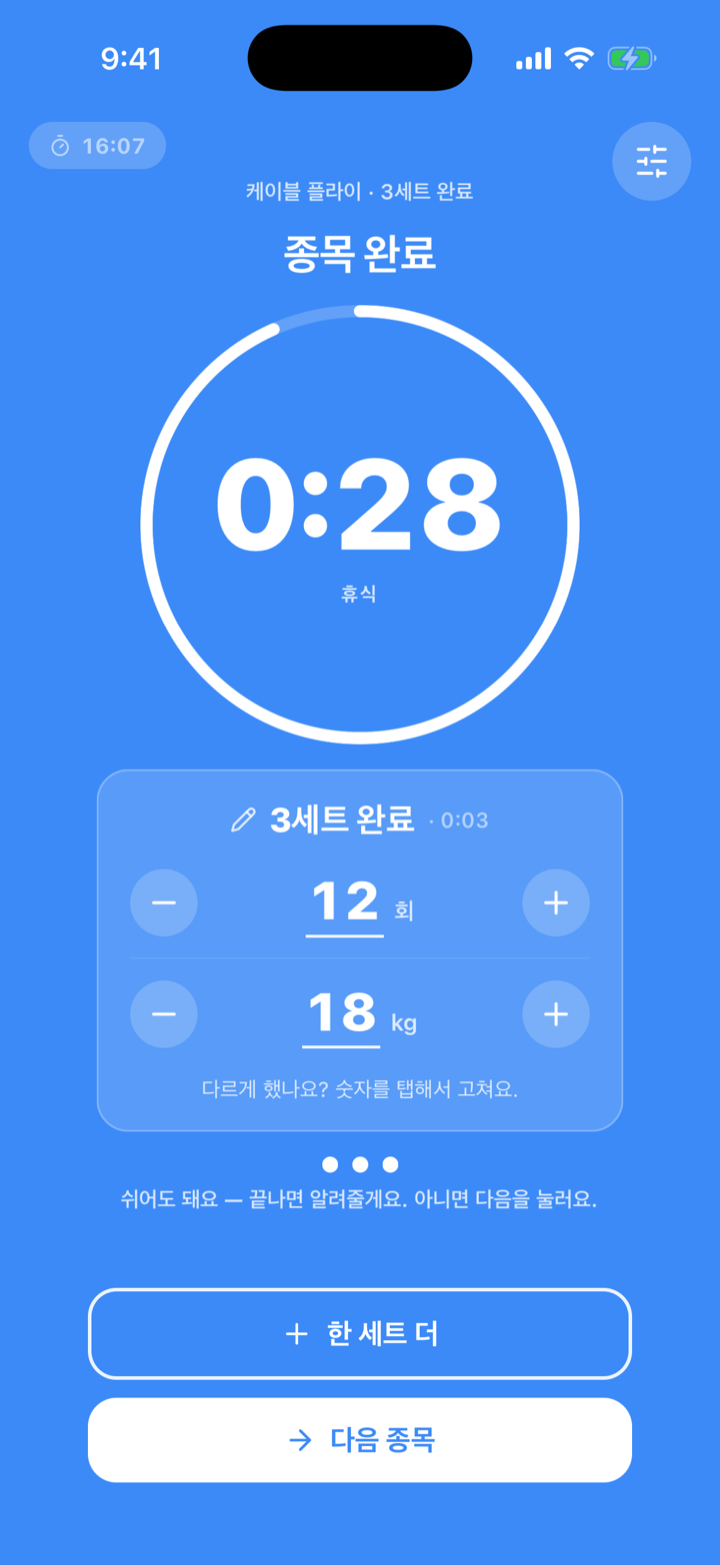
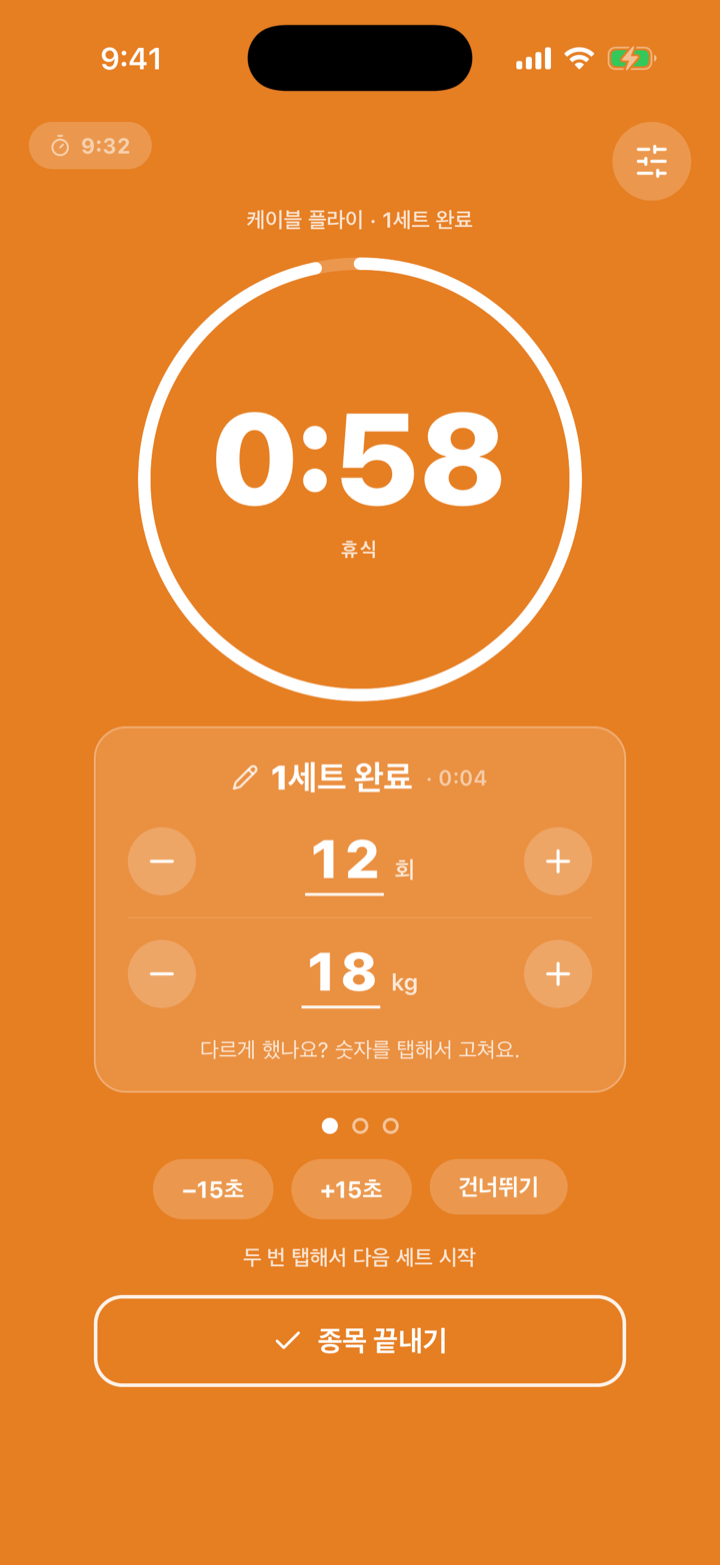
세트를 기록하면 휴식 타이머가 자동으로 돕니다.
이렇게 씁니다
- 세트 기록과 동시에 남은 휴식 시간이 크게 표시됩니다.
- 시간이 끝나면 바로 다음 세트로 넘어갑니다. 목표 시간을 넘기면 초과분도 보여줍니다.
잔소리 알림 ★
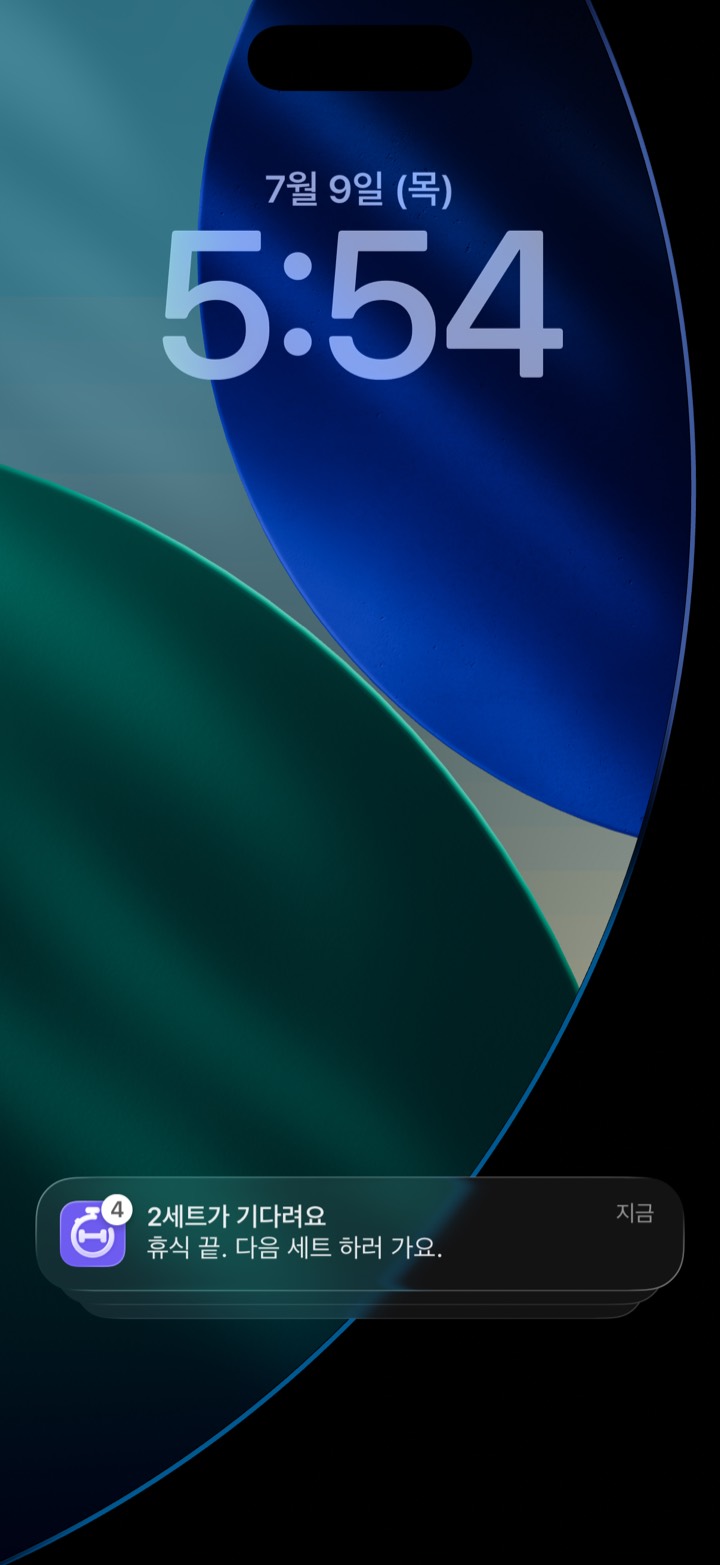
휴식이 길어지면 알림이 옵니다.
이렇게 씁니다
- 앱을 보고 있을 땐 소리와 음성으로 알려줍니다.
- 화면을 껐거나 다른 앱을 보고 있으면 잠금화면 알림(진동)으로 붙잡습니다.
팁 — 그래서 세트 사이에 폰을 만지작거려도 다음 세트 타이밍을 놓치지 않습니다.
04 슈퍼세트
번갈아 하는 운동을 하나의 흐름으로 묶습니다.
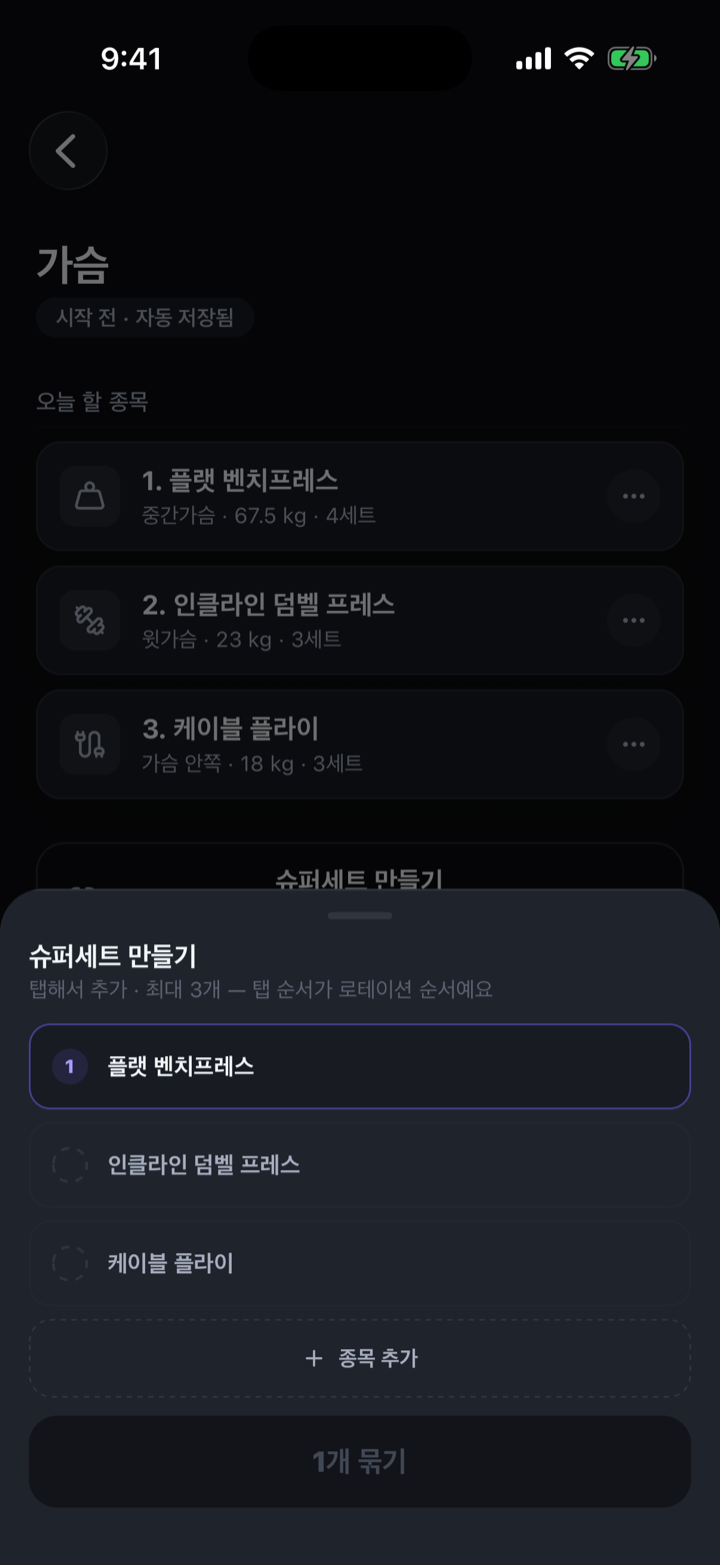
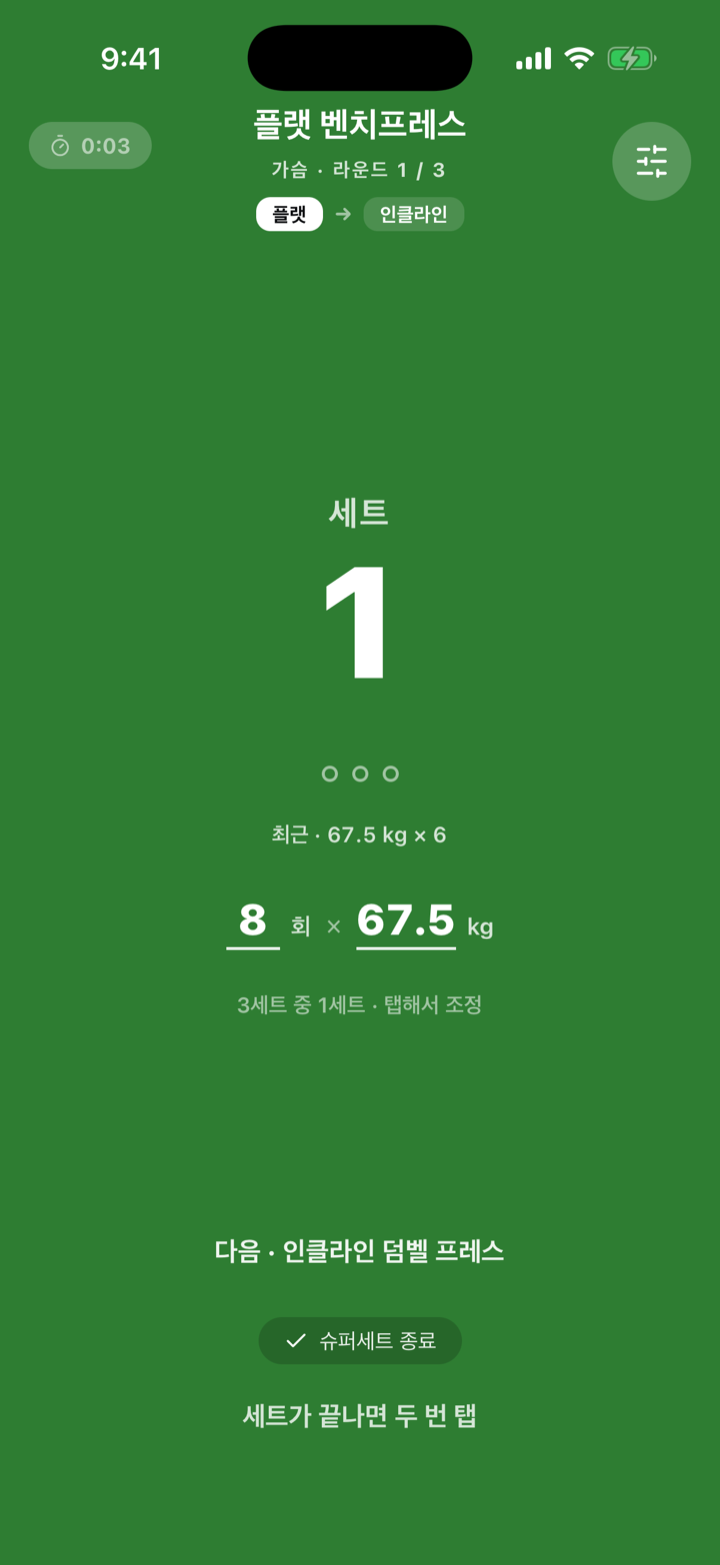
슈퍼세트 구성 & 진행
두 개 이상의 종목을 묶어 번갈아 진행합니다.
이렇게 씁니다
- 셋업에서 종목들을 슈퍼세트로 묶습니다.
- 진행 중에는 앱이 순서와 휴식을 관리해, 지금 무슨 종목 차례인지 헷갈리지 않습니다.
05 인터벌 트레이닝
라운드·휴식·카운트다운을 앱이 자동으로 돌립니다.
인터벌 세션
운동·휴식 시간과 라운드 수를 정하면 앱이 순서대로 진행합니다.
이렇게 씁니다
- 인터벌 프로그램을 만들거나 저장해둔 것을 고릅니다.
- 시작하면 운동·휴식이 번갈아 진행되고, 전환 직전 카운트다운으로 알려줍니다.
- 저장한 프로그램은 다음에 그대로 다시 씁니다.
06 유산소 프로그램
러닝·걷기·계단·일립티컬을 하루 단위 계획으로 따라 합니다.
유산소 프로그램 따라 하기 ★
유산소 종류와 레벨을 고르면 앱이 하루하루를 짜줍니다. 뒤로 갈수록 조금씩 길고 세집니다.
이렇게 씁니다
- 유산소 종류(러닝·걷기·계단·일립티컬)를 고르고, 초급부터 고급까지 레벨을 정합니다.
- 시작 전 미리보기로 계획을 확인합니다. 매일의 시간과 속도가 한눈에 정리돼, 오늘 뭘 할지 알 수 있습니다.
- 그날 운동을 시작합니다. 앱이 속도와 시간을 안내하고, 진행이 저장돼 다음 날 이어서 합니다.
팁 — 러닝이 처음이면 걷기부터. 프로그램이 완만하게 시작해 차차 늘려주므로, 뒤쪽 날은 첫날보다 길게 갑니다.
07 히스토리 & 필터
지난 기록을 부위·종목으로 바로 찾고, 달력으로 훑습니다.
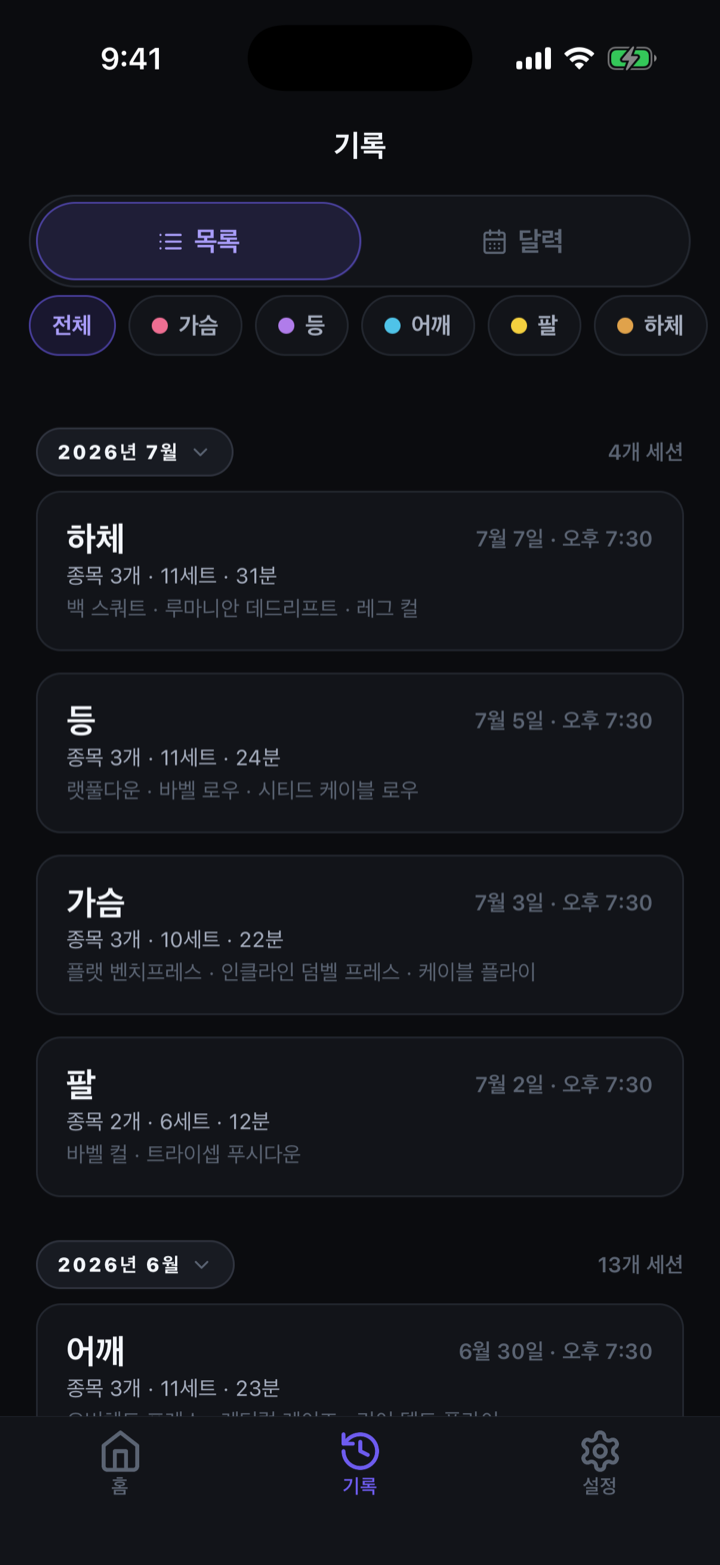
기록 필터 ★
쌓인 운동을 부위·종목으로 필터해 원하는 기록을 한 번에 찾습니다.
이렇게 씁니다
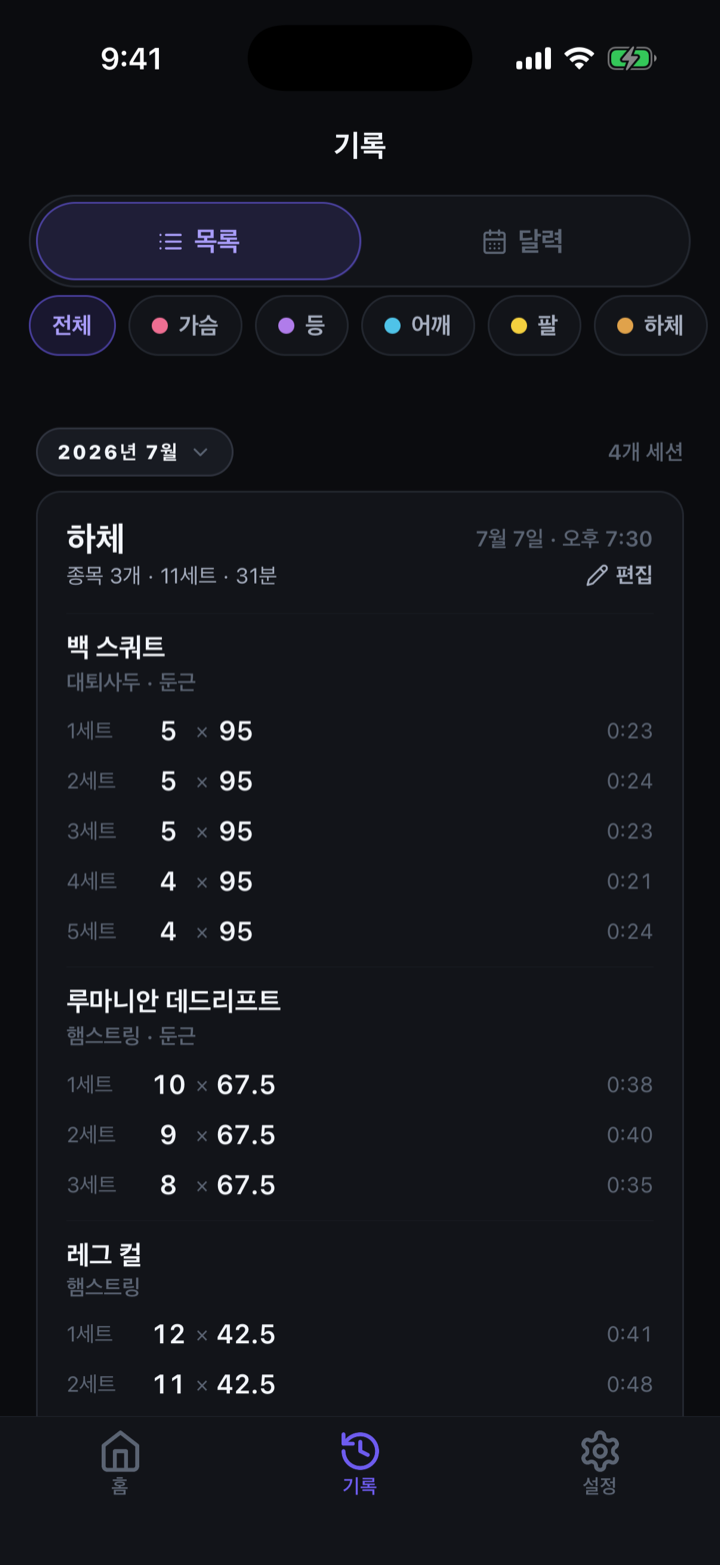
- 히스토리에서 부위나 종목으로 필터를 겁니다.
- 기록을 열면 그날의 세트를 그대로 확인하고 수정할 수 있습니다.
달력 보기
운동한 날이 달력에 표시됩니다.
이렇게 씁니다
- 달력으로 전환하면 운동한 날이 표시됩니다.
- 날짜를 누르면 그날 한 운동을 바로 봅니다.
08 설정 & 백업
데이터는 내 기기에. 필요하면 내보내고 다시 불러옵니다.
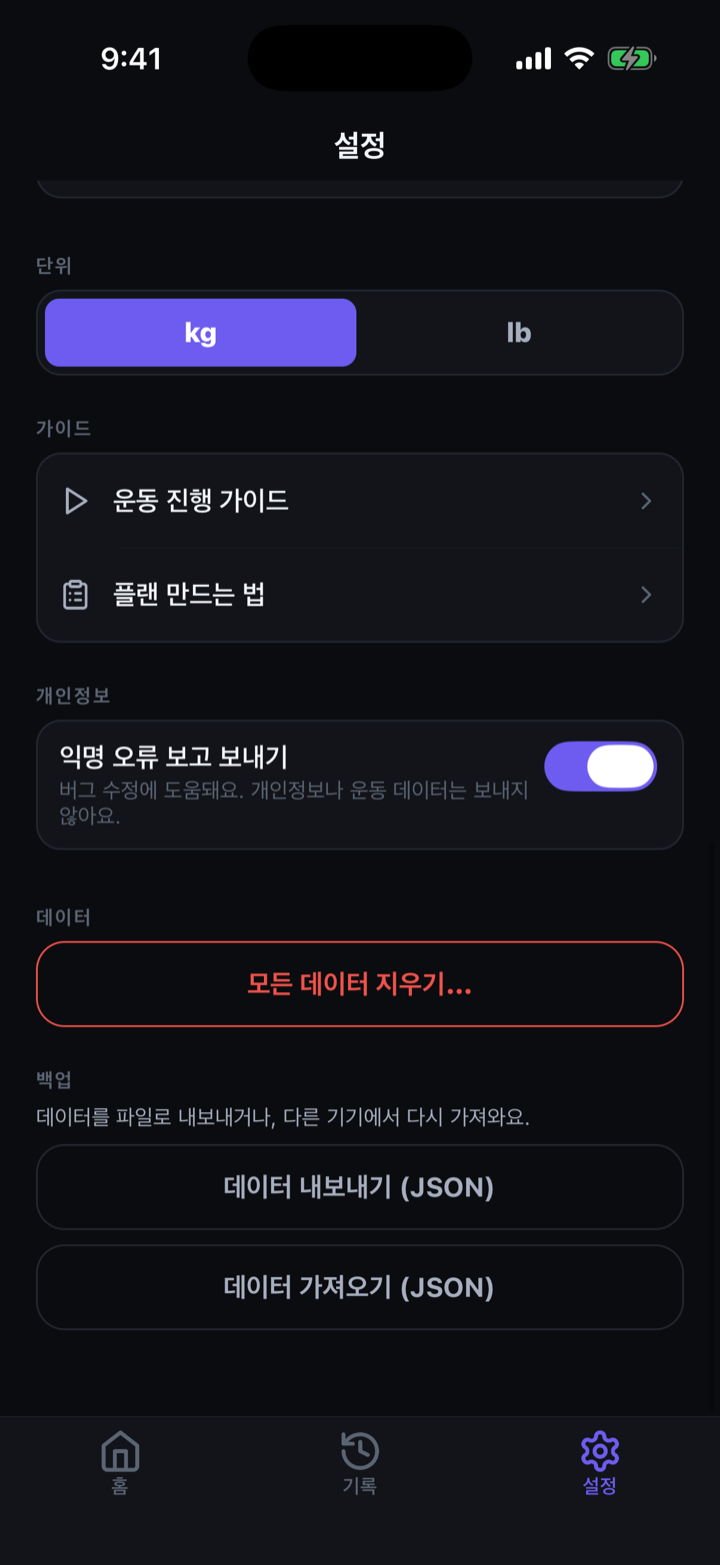
백업 & 복원
운동 기록을 파일로 내보내 보관하고, 다시 불러옵니다.
이렇게 씁니다
- 설정에서 기록을 파일로 내보냅니다.
- 기기를 바꾸거나 재설치할 때 그 파일로 그대로 되살립니다.
09 곧 출시
다음 업데이트에서 만날 기능입니다.
운동 디테일 (SOON)
운동 이름을 누르면 어떤 부위인지, 어떻게 하는지 바로 확인합니다. 운동 이름이 보이는 어디서든 열 수 있습니다.